



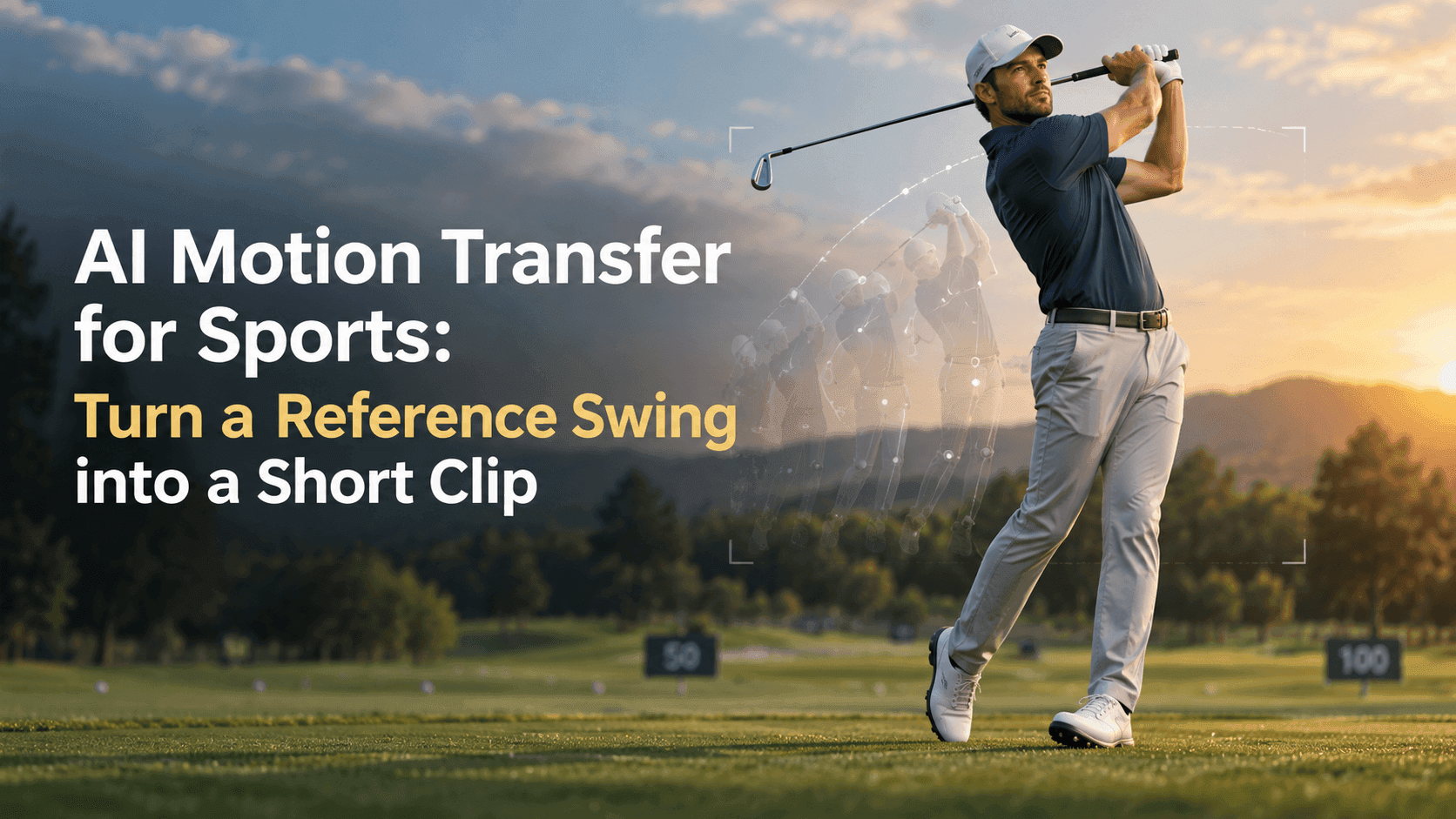
AI Motion Transfer for Sports: Turn a Reference Swing into a Short Clip
AI Motion Transfer for Sports: Turn a Reference Swing into a Short Clip
A short swing can be surprisingly hard to animate well. The body turns, the arms cross, and the bat or club moves quickly—all within a few seconds. AI motion transfer can use a reference performance to guide that movement, but the result depends a lot on the footage and photo you start with. A clear swing is easier to follow than a dramatic one filmed from behind a fence.
AI Motion Transfer Starts with a Readable Reference
Before generating anything, watch the reference clip once without thinking about the prompt. Can you tell where the swing begins, when the main movement happens, and how it ends? If those beats are difficult to see in the original, they may be difficult for the model to reproduce too.
Choose a clip with one athlete in frame and as little obstruction as possible. A full-body or three-quarter view usually gives the model more to work with than a tight crop of the upper body. Try to match the reference angle to your still image: a side-view swing is a more natural fit for a side-facing subject than for someone photographed straight on.
The source image matters just as much. The athlete’s arms, hands, and equipment should be visible enough to understand their starting positions. If the bat is cut off at the edge of the photo, or one arm is hidden behind the torso, AI motion transfer has less visual information to work with. It may fill in those gaps in ways you didn’t intend.
Pick One Swing, Not a Highlight Reel
A reference video with several actions can make the result feel muddled. A player who takes a stance, swings, celebrates, runs, and turns toward the camera is giving the model several different movements to interpret. For a short clip, choose one clear action: settle into the stance, complete the swing, then hold the finish.
That simple sequence gives AI motion transfer a beginning and an endpoint. The pause matters. Without it, the clip may cut off just as the bat reaches the end of its path, or the athlete may keep moving after the swing is complete.
It’s also worth checking the pace. A slow-motion clip can look dramatic, but it may not transfer cleanly if the still image shows a different body angle or position. A reference doesn’t need to look cinematic. It needs to show the movement clearly.
Write the Prompt Around What the Reference Cannot Show
When a video is guiding the movement, the prompt usually works best when it describes the parts the video does not decide: the setting, clothing, lighting, framing, or what should remain unchanged. Reveedo’s Kling motion-control guide makes the same distinction between the reference performance and details supplied by the text prompt. Read the guide.
For example:
Use the swing timing and body movement from the reference video. Keep the athlete’s face, uniform, and body proportions consistent with the source image. Show one clean practice swing in a quiet outdoor batting cage. Keep the camera in a steady, full-body side view. The athlete finishes the swing and holds the final pose briefly.
This gives AI motion transfer useful boundaries without describing every frame. If you want the background or camera to move, say so plainly. Otherwise, a steady camera is often the safer choice for a first attempt.
Check the Photo–Video Match Before You Generate
The reference and source image don’t have to be identical, but they should make sense together. If the photo shows a batter facing left and the video shows a batter facing right, the model may need to reinterpret the pose. The same goes for a very different camera height, stance, or grip.
For a first try, keep the inputs simple: one athlete, one piece of equipment, one action, and a background that won’t distract from the swing. AI motion transfer tends to be easier to assess when you aren’t also asking for a scene change, a camera orbit, and a dramatic lighting shift.
Reveedo’s image-to-video workflow lets you start with a still image and describe the motion you want; available options can depend on the selected model. Check the controls shown for that model before planning around a specific reference-video feature. See the image-to-video page.
Review the Awkward Frames, Not Just the Thumbnail
A thumbnail can hide the parts that need attention. Watch the clip from start to finish, especially where the hands meet the bat or club, where the torso turns, and where the athlete reaches the final pose. Look for equipment that bends, hands that merge with the handle, or a uniform that changes shape between frames.
If something looks off, change one input at a time. Try a clearer reference, a less extreme pose, or a shorter action. Rewriting the entire prompt after every attempt makes it harder to tell what actually helped.
The aim isn’t to recreate a perfect broadcast replay. It’s to make a short, understandable clip where the swing reads cleanly and the athlete still looks like the person in the source image. A good reference and a restrained prompt usually get you closer than adding more adjectives.
SEO note: The English body is written to target roughly 2% exact-match use of “AI motion transfer”; density varies slightly depending on whether a checker counts headings and hyphenated terms.