



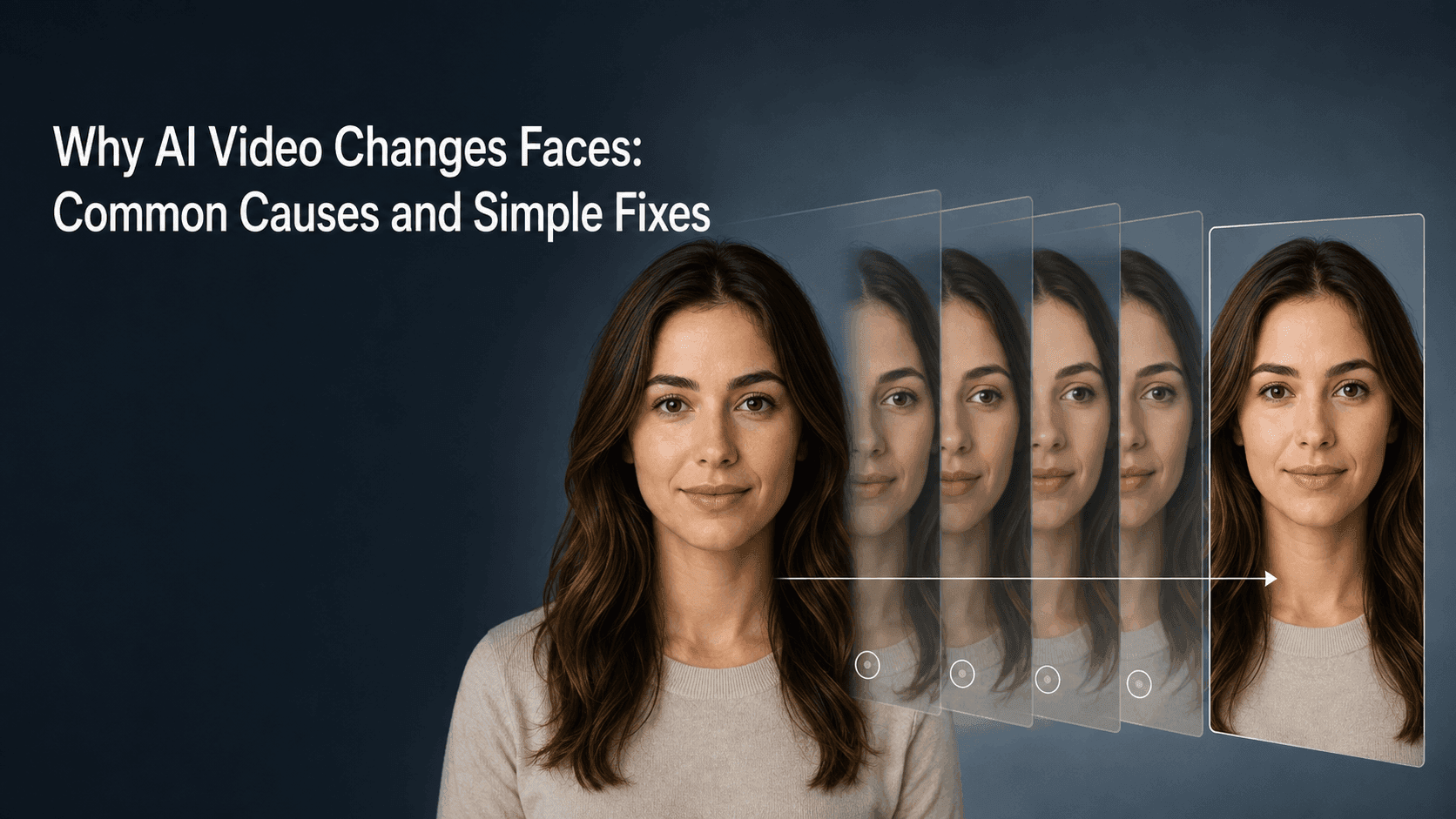
Why AI Videos Change the Face: Causes and Fixes
Why AI Video Changes Faces: Common Causes and Simple Fixes
A lot of the time when we're generating AI video, we upload a portrait and want the person to smile a little, or have the camera slowly move closer. Sometimes the video starts off fine, but after a while the eyes start to sit wrong, and by the end it feels like the person has turned into someone else.
This kind of thing is genuinely frustrating—especially when the original photo was perfectly good, but the video comes out looking bad. In most cases, when a person's face changes in the video, it's not just a prompt issue; the source image you uploaded might also be part of the problem. And often, stuffing the prompt too full actually makes things worse.
So let's look at why AI video changes faces from a few angles—the source image, the camera, and the prompt—and what you can do about it when working with image-to-video in Reveedo.
What Does "The Face Changed" Actually Mean?
When people talk about "face drift," what they usually mean is that the video generation model didn't hold onto the same facial features across the following frames. At first it might just be a tiny difference in the eyes or the mouth, but as the video keeps generating, the person's age, hairstyle, skin texture, and even the overall proportions of the face can slowly drift out of shape.
It doesn’t have to be a completely different face. Often it’s more like “it kind of looks like them, but not really.” Since humans are extremely sensitive to faces, even a small change stands out much more than a background shift.
A still photo only gives the model one moment in time. The expression, head angle, and any parts hidden by hair all have to be guessed for later frames. The more motion or angle change you ask for, the more the model has to invent.
The face in the source image isn’t clear enough
If the face is too small, the photo is low resolution, the lighting is poor, the person is wearing sunglasses, the hair covers the eyes, or the face is turned too far to the side, the model simply doesn’t have enough facial information to work with. It has to fill in details frame after frame, and that’s exactly when the face starts to shift.
Try to use a photo where the face is clear and the person takes up a reasonable part of the frame. It doesn’t need to be a studio portrait—a normal phone photo by a window works fine. The important thing is that the eyes, nose, and overall face shape are easy to see.
If the face is very small in the original image, crop it first or upscale it a bit before generating video. Reveedo’s AI Image Upscaler can help with low-detail source images. Just don’t over-sharpen—keeping a natural texture is actually more stable than a face that looks overly smoothed.
Asking for too many movements at once
A lot of unstable videos aren’t the model’s fault. The request is simply too much: the person turns around, walks forward, smiles, fixes their hair, the camera orbits them, and the wind blows their clothes and hair. Each action sounds fine on its own, but when everything happens within a few seconds, the model has to handle the body, face, hair, camera, and background all at the same time. The face is usually the first thing to suffer.
For the first generation, pick one main action. A slight look toward the camera, a small smile, a half-step forward, or just a slow push-in. That’s already enough to bring the photo to life.
Try a prompt like this:
Keep the person’s face, hairstyle, clothing, and identity unchanged from the original image. The person smiles gently and looks slightly toward the camera. The camera moves forward slowly and smoothly. The background stays the same.
That might feel too simple, but that’s the point. Once the face is stable, you can always do a second version with more movement.
The prompt accidentally rewrites the person
Some words seem like they’re just making the image look better, but they can actually push the model to redesign the character. Words like “younger,” “perfect skin,” “magazine makeup,” “much more beautiful,” or “different hairstyle” are common culprits. If you also ask for new lighting, a new scene, or new clothes, the model is even more likely to treat the person as a brand-new character.
If your priority is keeping the person looking like the original, state what should not change first, then add the movement. You can explicitly mention the face, hairstyle, age, skin tone, clothing, pose, and background. Then add only one change you actually want.
For example:
Keep the person’s face, hairstyle, age, skin tone, clothing, and background unchanged from the original image. The person blinks once and turns their head slightly to the left. Natural window light. Do not change the person’s identity or facial features.
You don’t need to repeat “don’t change the face” three times. One clear instruction about what to preserve, followed by avoiding contradictory style descriptions, is usually enough.
Big head turns force the model to guess the side profile
A front-facing photo doesn’t contain a full side profile, the ears, or the other side of the hair. If you ask the person to turn their head dramatically, the model has to invent all the parts it can’t see. That’s one of the most common moments where faces start to fall apart.
If your original image is a front-facing portrait, keep the head turn small. “Slightly look toward the window” is usually much more stable than “turn around and look back at the camera.” If you really want a clear side profile, start from a photo that already has a three-quarter or side angle. The closer the original image is to the motion you want, the more natural the result will be.
The same logic applies to camera movement. A slow push-in is usually much more stable than an orbit around the person. It gives the frame a sense of motion without forcing the model to generate entirely new facial angles.
Longer videos drift more over time
The longer the video, the more small changes accumulate. A face can look perfect for the first two seconds and then slowly drift by the end, because the model keeps generating new visual information frame after frame.
When the face matters, generate a short, stable clip first, then pick the best part. If you really need a longer video, do it in sections and keep the version that stays closest to the original image. It takes a little more time, but it’s much more controllable than gambling on one long output.
How to quickly find the problem when the face changes
When a result isn’t right, don’t immediately throw everything away and write a long new prompt. Look at the exact second where the face starts to break, then look at what’s happening in that moment.
- If it changes right at the start: use a clearer source image, or remove excessive style words.
- If it changes when the head turns: make the turn smaller, or use a photo with a closer angle.
- If it changes during fast camera movement: keep the camera still, or switch to a slow push-in.
- If it changes in the second half: shorten the generation length and keep the stable part at the beginning.
- If the face is fine but the hair or clothes change: remove wind, outfit changes, or strong lighting shifts from the prompt.
Change one thing at a time. It feels slower, but you’ll actually learn what works. If you swap the image, action, camera, and lighting all at once, you won’t be able to reuse what you learned next time.
A simple prompt structure that works
For portrait image-to-video, try writing your prompt in this order:
What stays the same: [face, hairstyle, age, clothing, background].
Action: [one small movement].
Camera: [one small move, or locked off].
Environment: [one subtle detail].
Full example:
Keep the person’s face, hairstyle, age, blue jacket, and city street background unchanged from the original image. The person takes one small step forward and smiles gently. The camera stays steady and slowly pushes in. A light breeze moves the hair slightly. Do not change the person’s identity or facial features.
If the hair movement makes the result unstable, delete that sentence. If the walking feels off, switch to a blink or a smile. You don’t need to pack every action into one video.
One last thought
When making portrait AI videos, it helps to think of it as extending a single moment from the photo, not re-creating the person from scratch. Use a clear source image, protect the most recognizable facial features, and give the person one small, simple action.
When the face starts to change, subtract before you add. Fewer instructions and a calmer motion often bring you closer to the person you originally uploaded.