



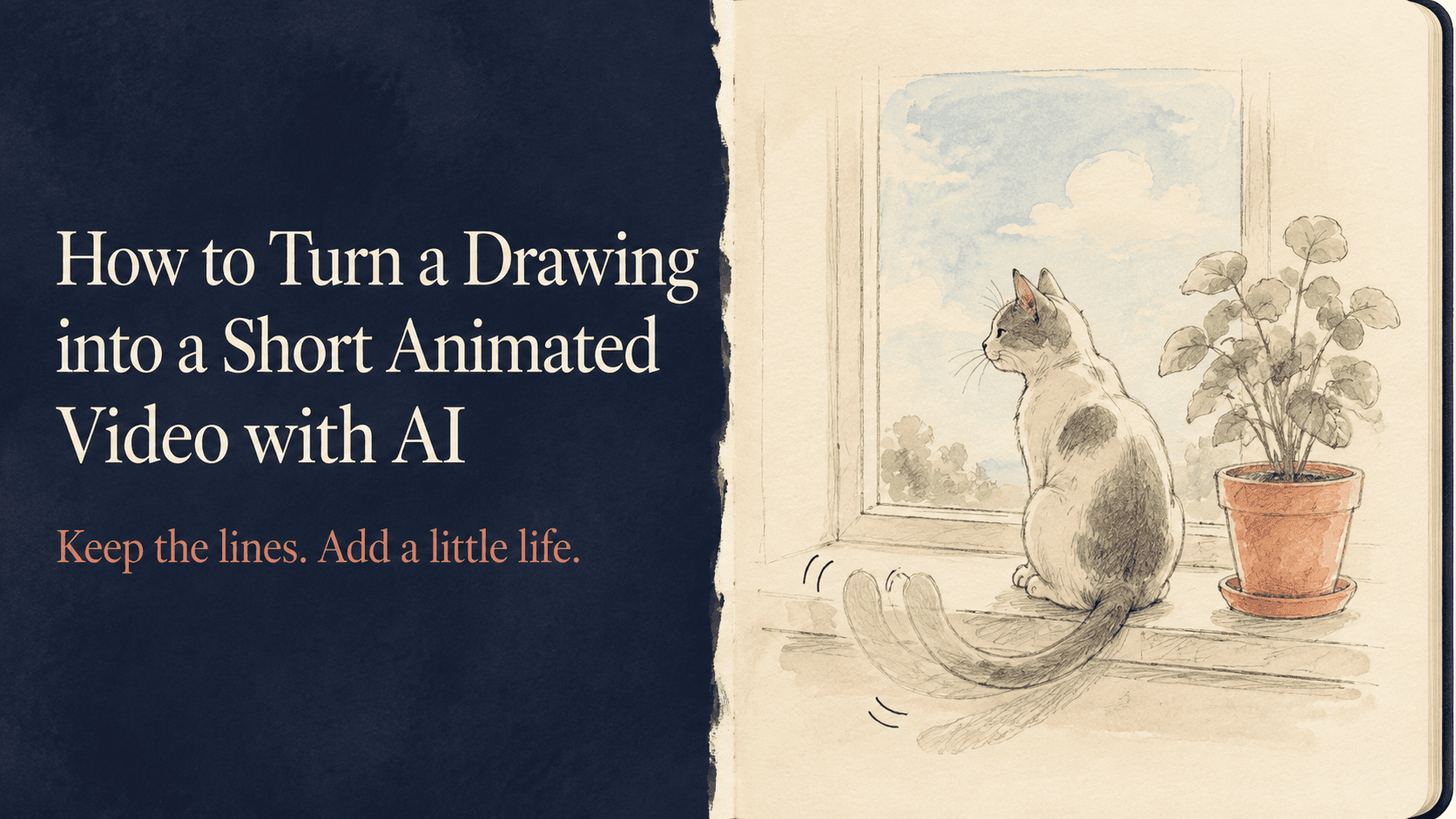
How to Turn a Drawing into a Short Animated Video with AI
How to Turn a Drawing into a Short Animated Video with AI
You finish a drawing and start imagining what happens next. The cat on the windowsill might flick its tail. The character might glance up. The clouds above a painted house might drift a little farther.
To turn a drawing into a short animated video with AI, start with that small idea. Upload a clear image of the artwork, describe the movement, and explain which parts of the drawing should stay consistent.
The first goal is a few seconds that still look like your work.
Prepare the drawing without polishing away its character
For digital artwork, export a clean image with the background you want to use. Leave some space around the subject, especially if a hand, tail, or branch will move.
For a drawing on paper, scan it or photograph it straight on in even light. Crop out the desk and your hands unless they belong in the finished scene. Check that a shadow from your phone is not covering the page.
Keep the qualities you like. Pencil grain, uneven ink lines, and visible watercolor washes are part of the artwork. You do not need to turn a rough sketch into a polished digital illustration before animating it.
If there are several figures or panels on one page, start with a crop of one scene. That gives your first prompt a clear subject.
Choose an action the drawing can support
Imagine a pencil drawing of a cat sitting beside a window. A blink or a small movement at the tip of its tail fits the pose already on the page.
Asking the cat to jump down, run across the room, and turn toward the viewer requires new poses, hidden body parts, and more of the room. You can explore that later, but it changes the task considerably.
For your first clip, choose one action:
- A character blinks once.
- A leaf sways on its stem.
- A loose strand of hair shifts.
- Clouds move slowly across a painted sky.
You can also keep the drawing still and add a gentle camera move. That works well when you want viewers to notice details across the artwork.
Tell the prompt what to move and what to preserve
“Animate this drawing” gives the generator plenty of room to interpret the result. Name the subject, describe the action, and identify the visual style.
For the cat example, try:
Animate the pencil-drawn cat in the reference image. The cat blinks once while remaining seated in the same pose. Keep the camera fixed. Preserve the original pencil strokes, paper texture, proportions, and simple background.
This is a starting prompt, not a tested guarantee. Compare the result with your image and adjust what matters.
If you want a tail movement instead, replace the blink instruction:
The tip of the cat’s tail makes one small, slow movement, then settles.
Keeping those as separate tests makes it easier to see which action suits the drawing.
Match the wording to the medium
A flat cartoon and a watercolor landscape need different descriptions. Tell the model what the image actually looks like.
For a cartoon character:
The illustrated character gives one small wave with the visible hand, then returns it to the starting position. Maintain the flat colors, bold outlines, original face, and body proportions. Keep the background still and the camera fixed.
Use this with a drawing where the hand and arm are already visible. If they are hidden, choose a blink or another action that fits the image.
For a watercolor landscape:
In the watercolor scene, the clouds drift slowly to the right while the house and foreground remain still. Preserve the soft paint edges, paper texture, pale colors, and original composition. The camera stays fixed.
For a flower drawing:
The illustrated flower sways slightly to one side and gently returns. Keep the stem rooted in its original position. Preserve the petal shapes, leaf arrangement, hand-drawn lines, and background.
Words such as “photorealistic” or “3D render” introduce a different visual direction. Leave them out when you want the result to resemble the original drawing.
Generate a short first version in Reveedo
Reveedo offers image-to-video tools and an AI Animated Video Generator. Open the workflow you want to use, upload your drawing, and check the options available for the selected model.
Choose a short duration for the first attempt. If you select a camera effect in the interface, make sure it agrees with the prompt. A fixed-camera instruction and an orbit effect describe different shots.
Watch the result once at normal speed, then pause near the middle and end. Look for changes in the face, outline, colors, and background.
Did a black outline become soft shading? Did the character gain extra details? Does the paper texture seem to slide independently of the drawing? Those differences help you decide what to revise.
Fix a specific change
If the character looks three-dimensional, try:
Maintain a flat 2D illustration with the original outlines and solid colors.
If the whole page seems to bend:
Keep the page and background stationary. Limit movement to the character’s eyelids.
If the action is too large:
Reduce the movement to a slight shift. Keep the original silhouette nearly unchanged.
When the same area keeps distorting, simplify the movement or use a source image where that part is clearer. Adding more instructions will not necessarily supply missing visual detail.
AI-generated video also differs from a layered animation project. Do not assume you will be able to select and edit each moving element afterward. Save your original artwork separately.
Finish while the drawing still feels familiar
You do not have to use every second of the generated clip. If the opening looks good and the final moment drifts, trim it before that change.
You can hold on the original drawing briefly at the beginning, then let the movement start. Add titles and sound during editing, after choosing the picture you want to keep.
For a looping clip, compare the first and last frames. A character returning to a similar pose can help, but the transition may still need trimming or a short dissolve.
Play the animation beside your original once more. The movement should give you something to enjoy without making you wonder where your drawing went.