



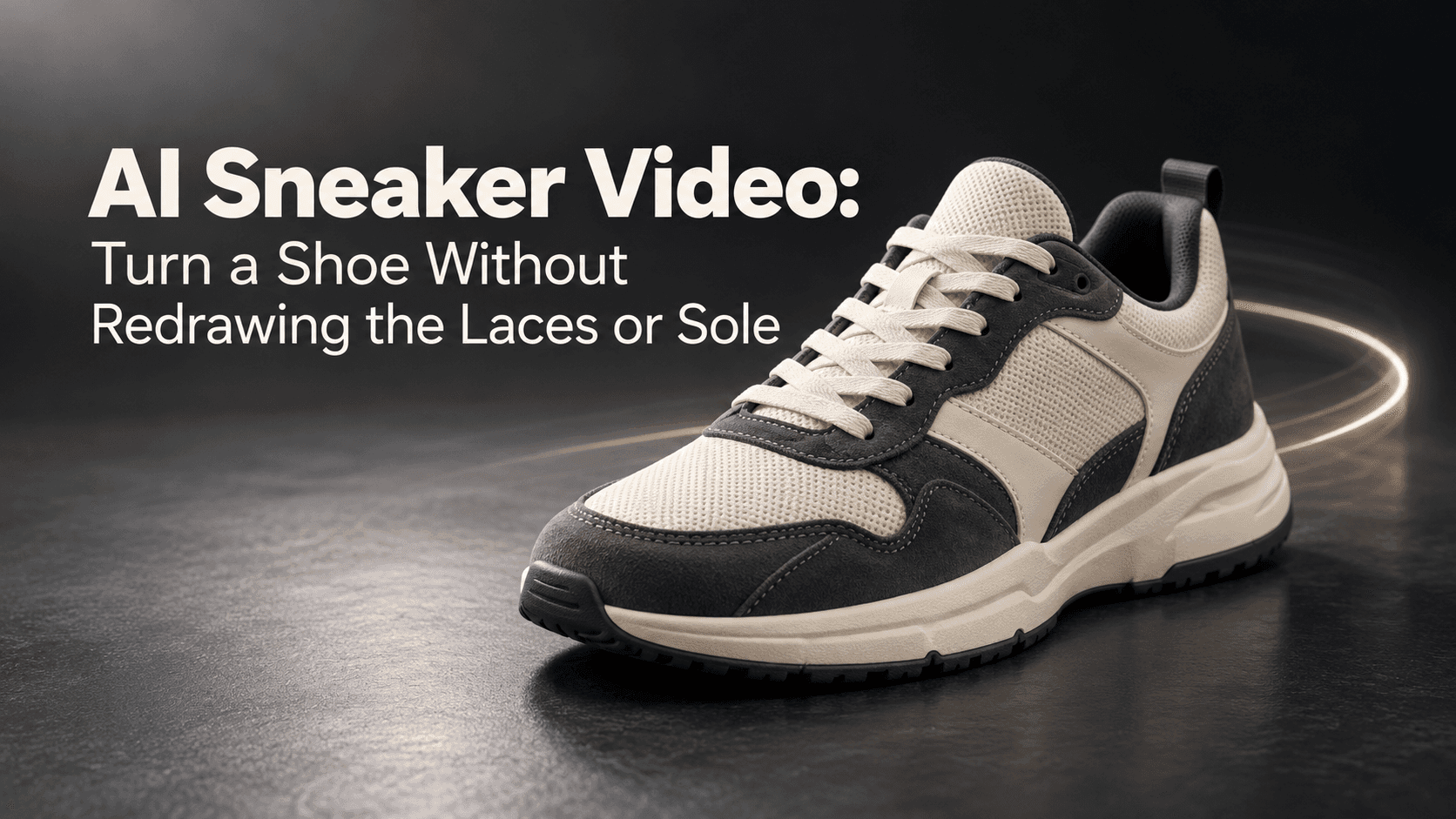
AI Sneaker Video: Turn a Shoe Without Redrawing the Laces or Sole
AI Sneaker Video: Turn a Shoe Without Redrawing the Laces or Sole
The shoe in the opening frame has six pairs of eyelets. At the end, it has seven. You might not notice until you put the clip beside the product photo. That is the problem with a sneaker video: the motion can look convincing while the product stops being yours. If you sell the shoe, that error matters more than a dramatic camera move. You need an angle that shows something useful, and a way to tell when the generator starts redesigning the shoe.
A Sneaker Video Begins with an Honest Photograph
A side view can look clean, but it says little about the tongue or the order of the laces. A photograph taken slightly toward the toe shows the front curve, outer side, and enough of the top to establish how this pair is put together. That makes a sneaker video easier to judge.
Leave space around the heel and toe. If either is cut off, the missing edge must be filled in during the turn. White laces against a bright white tongue may disappear before animation starts. Move the light or change the background; a longer prompt will not restore a crossing that cannot be seen.
If you can, take a second angle without touching the laces. Check that the sole color, heel tab, and small printed marks agree. The photographs should describe one real physical object, not two versions of it.
Set the shoe on a plain surface, not in a hand. Fingers crossing the upper create another edge to track, and a moving hand can make the shoe bend. A simple backdrop makes it easier to notice whether the outsole floats. You can place the finished shot in a busier edit.
Decide What the Sneaker Video Should Reveal
It is tempting to ask for a full rotation. A single photo says nothing about the inner side or tread underneath. A sneaker video can fill those gaps with plausible details, but plausible is not accurate. If the point is the side panel, turn just far enough to show it.
Keep the camera still for the first attempt. Let the shoe turn slowly and stop. Or leave it stationary and make a shallow camera arc. A sneaker video is easier to check when only one thing moves. Otherwise, did a seam shift, or did the camera simply pass it?
Think about the final frame first. Would a photograph from that angle show the same logo and heel? If not, the sneaker video may be revealing too much unseen shoe.
Length matters. A slow turn held for several seconds gives the image more chances to wander. Try a brief move and a clean stop. That resting frame shows the shoe after the motion and gives you a point of comparison with the source photograph. If it will not hold still at the end, the movement is asking too much of the starting image.
In a Sneaker Video, Follow the Laces
Nice light can cover a lot. Laces are less forgiving. Pick one crossing near the bottom and follow it. Does that lace still pass over the other? Are the loose ends the same length? Does an eyelet turn into a stitch? A sneaker video with a new lacing pattern is not a faithful product shot.
Give the generator a few anchors: eyelet count, lace pattern, tongue shape, side mark, and sole line. A viewer can compare those with the listing photograph. A sneaker video prompt full of vague praise says nothing about what must stay put.
If the pair has a cream midsole and white upper, say so. Otherwise the midsole may become white in the sneaker video. On a phone, that can be easier to spot than a misplaced seam.
Check the Sole in the Sneaker Video
The outsole has two stories: the side and the tread underneath. A three-quarter photograph shows the first, not the second. When a sneaker video tips the shoe upward, invented grooves can appear. The heel can grow taller, too.
There is no prize for showing every surface in one shot. Photograph the tread for a cutaway. If your video mode supports another reference image, that photo may help; check its settings first. Otherwise, two accurate views beat one uninterrupted turn with a fictional sole.
Write the Prompt as if You Were Directing a Small Shoot
Here is a useful first pass:
Make a sneaker video from this product photograph. The camera stays fixed. The shoe turns slowly toward its outer side, then stops. Keep the number of eyelets, the order of the lace crossings, the tongue, the side logo, the stitching, and the sole profile unchanged. Keep the color and light consistent. No hand, extra shoe, or text.
Change the direction if the photograph shows the opposite side. If the sneaker video still produces new eyelets, shorten the turn. “Flawless” and “photorealistic” will not tell it what the hidden heel looks like.
For a livelier edit, cut to a real close-up of the lace or sole. Pacing belongs in the edit; product details belong in the source.
Put the Sneaker Video Beside the Real Shoe
Start with a short test in Reveedo's Image to Video tool. Play the sneaker video once, then stop near the middle. Compare that frame with the photograph. Do not settle for “it looks like the same shoe.” Count the eyelets. Trace the sole. Check the heel patch and lettering.
Check the version you will post, not only the large preview. A vertical crop may cut off the toe or expose a doubled lace tip. Watch the sneaker video at phone size before adding captions.
If the same detail fails every time, stop asking for that angle. Retake the photograph, show less of the hidden side, or film the shoe on a turntable. A camera may answer the buyer's question better. A sneaker video works when someone recognizes the pair in the clip and in the box.