



Seedream 5.0 Pro: How to Combine Reference Images for a Consistent Product Scene
Seedream 5.0 Pro: How to Combine Reference Images for a Consistent Product Scene
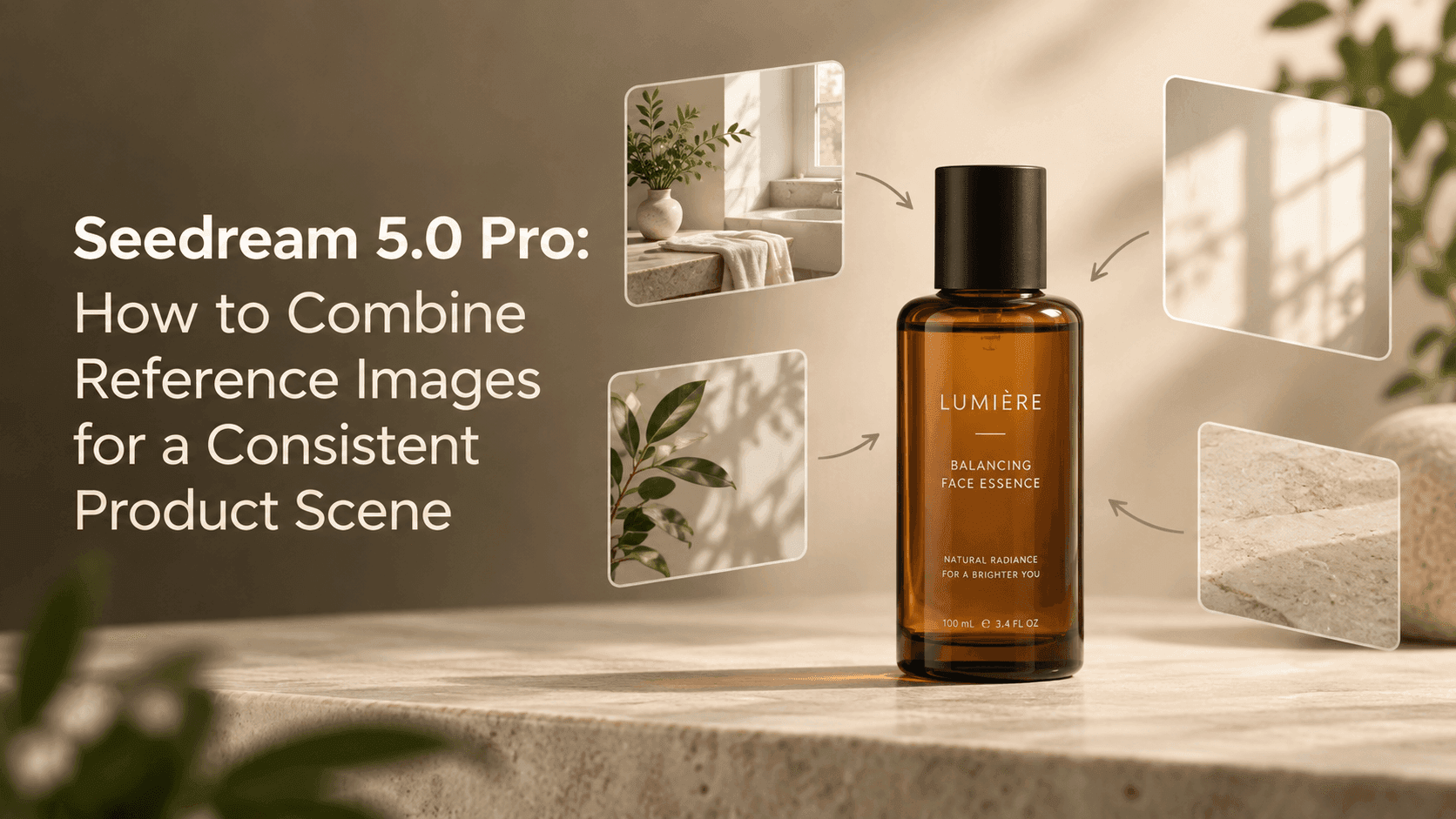
You have a product photo you like, a bathroom that has the right feel, and a third image with the lighting you want. Upload them all without explaining what each one is for, and the result may mix things up: a different bottle, a copied label, or a room that misses the mood. Seedream 5.0 Pro is easier to guide when every reference has a clear job.
For a product scene, let one image define the item. Use the others to suggest the setting, surface, or light. If you’re trying Seedream 5.0 Pro for the first time, start with one product and one supporting image. It’s easier to see what each reference is doing.
Seedream 5.0 Pro: Give Each Reference Image One Job
Choose the clearest product photo as your anchor. It should show the shape, color, packaging, and details people will recognize. If the label matters, use a view where it is easy to see and free of glare. The other images should support this photo, not compete with it.
Next, decide what you want from each additional image. One might provide a pale stone counter; another might suggest soft morning light. Spell out those roles in the prompt. For example: “Use image 2 for the counter and background tone only. Do not copy its bottle or layout.”
Avoid asking every image to influence everything. If one reference has different packaging, another has a busy room, and a third has dramatic lighting, their styles can clash. Two references with distinct roles are often a better starting point than a folder full of unrelated inspiration. Use Seedream 5.0 Pro first to settle the product, then style its setting.
Keep the Product Photo in Charge
Before describing the new scene, list the details that must stay put: the bottle silhouette, cap, label position, glass tint, or logo area. “Keep the product the same” leaves plenty of room for interpretation. Naming the details gives Seedream 5.0 Pro a clearer boundary.
Try a prompt like this:
Use reference image 1 for the exact skincare bottle, including its amber glass, black cap, and label position. Use reference image 2 only for the pale stone bathroom counter and soft morning light. Place the bottle on the counter with open space around it. Do not add other products or new text.
The prompt separates the product from its new surroundings. That distinction helps Seedream 5.0 Pro understand what to preserve and what to borrow. It also avoids asking the model to invent details that the source photo does not show. If the back of the bottle is missing from the reference, for instance, don’t ask for a dramatic turn that would reveal it.
If the First Result Is Off, Look for a Conflict
Check the item before judging the styling. Has the cap changed? Is the label still in the right place? Do the proportions look believable? Then check the scene. Are the shadows coming from one direction? Did an object sneak in from a reference that was meant to guide the lighting?
A mismatch often comes from a source image that is hard to read, an unclear prompt, or references that disagree with each other. Seedream 5.0 Pro cannot always reconcile those differences. Try removing the least useful reference or simplifying the scene before adding more instructions.
Make one change per attempt. If the counter looks right but the bottle has changed, keep the setting and reinforce the product details. If the product looks right but the room feels wrong, clarify which image should guide the background. Small revisions make it easier to tell what worked.
Check the Details Before You Publish
A generated scene can be useful for a draft or campaign concept, but inspect it before using it on a product page. Check the label, logo, packaging, and small print. Generated text may be inaccurate even when the rest of the image looks polished. If exact wording matters, add it afterward in a design tool.
Compare the result with the real product, too. Does the package still look like the item you sell? Is its scale believable beside the counter or towel? A convincing background does not make inaccurate packaging suitable for an ad.
Seedream 5.0 Pro can help you explore settings without arranging a new shoot for every idea. Keep the product photo in charge, give each supporting image a narrow role, and fix the specific detail that looks wrong. That gives you a scene you can assess—and a prompt you can adapt for the next product.