



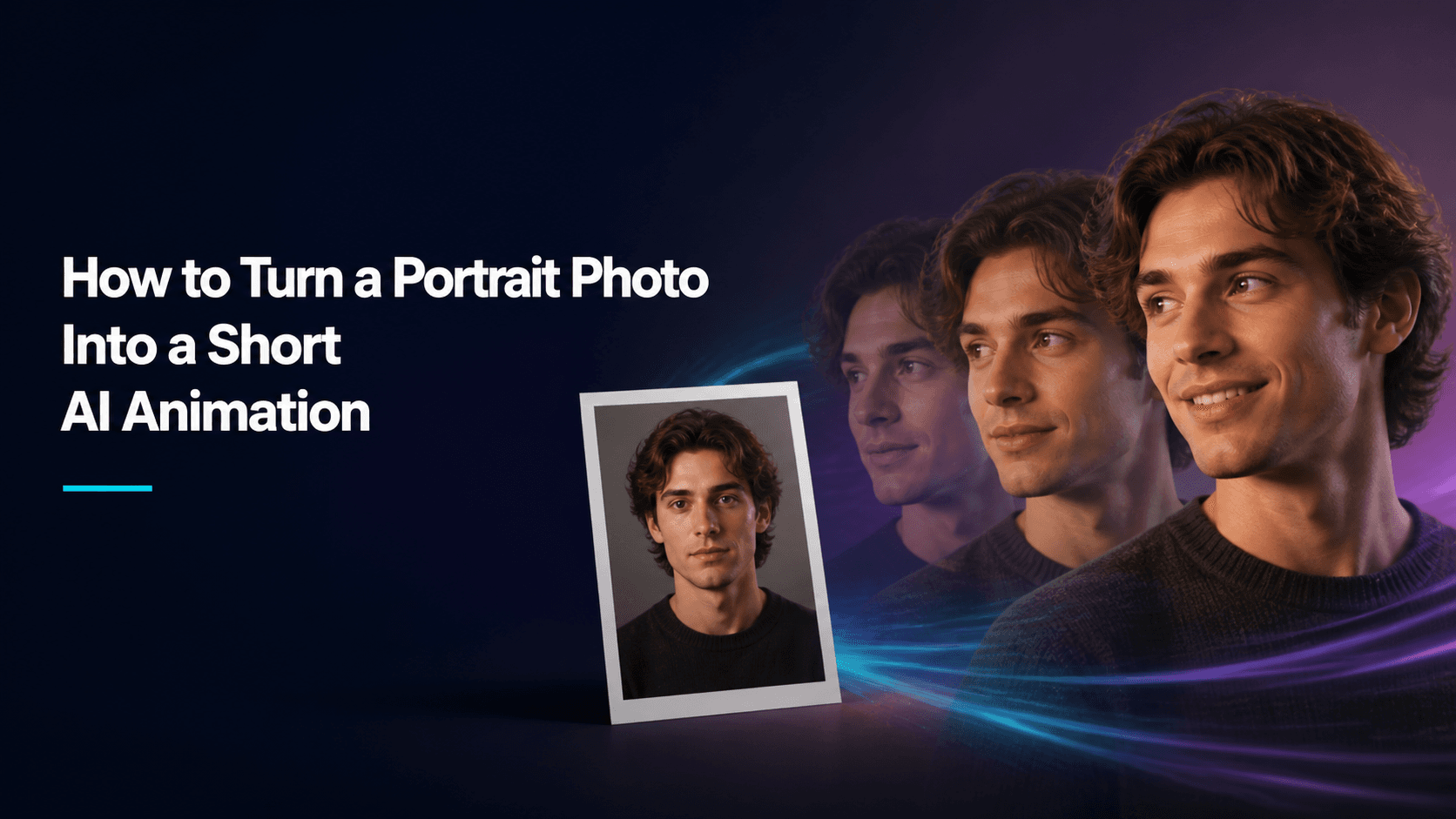
Turn a Portrait Photo into a Short AI Animation
How to Turn a Portrait Photo into a Short AI Animation
Turning a portrait photo into a short AI animation sounds easy enough — upload an image, write a prompt, hit generate. But the first result usually isn't great. The expression might be too exaggerated, the smile a little forced, the camera more dramatic than the original photo. And in the end, it doesn't look like the same person.
Good portrait animations tend to feel quiet. The person looks up, turns their head slightly, takes a step forward, or gives a small natural smile. That kind of change is enough to bring a still photo to life without turning the person into someone else.
In this article, I'll walk through the simplest way to turn a portrait photo into a short AI animation. You don't need to write long prompts or plan a full storyline from the start. Just pick the right photo, give the person a natural "next second," and you're ready to begin.
Pick a portrait that can actually move
The original photo usually sets the ceiling for how good your video can be. Try to choose a photo with a clear face and natural lighting. When the face is partly covered by hands, sunglasses, or heavy shadows, the tool often struggles to keep the person looking consistent. A relaxed, natural expression tends to work better than an exaggerated pose.
Look for photos like these:
- Face is large enough to see the details.
- Lighting looks natural and the background isn't too busy.
- If you want the person to turn or walk, it helps to see their upper body.
- Hair and clothing aren't cut off awkwardly by the edge of the frame.
If you're making vertical video, check the crop before uploading. Leave a little room above the head and around the shoulders so the camera has space to push in or move slightly.
Start with one small action
The most common mistake is asking the person to do too much at once. A portrait animation doesn't need to be a dance video or tell a full story. Pick one action that feels like something that could happen a second after the photo was taken.
Good actions to start with:
- Slowly looking toward the camera.
- Turning the head slightly.
- Blinking and giving a small smile.
- Taking one step forward.
- Lightly adjusting a sleeve or moving a hand naturally.
Keeping the movement small helps the face, hands, clothing, and background stay stable and consistent.
Write the prompt as a single shot
When using an AI animation video generator, treat the prompt like a simple direction for a photographer: say who the person is, what they're doing, how the camera moves, and which details shouldn't change.
A woman slowly turns her head toward the camera and gives a relaxed, natural smile. The camera gently moves closer. Keep the face, hairstyle, denim jacket, and city street background consistent with the reference image. Soft evening light in the sky.
That's enough. It doesn't ask the person to perform a series of expressions or use flashy camera language, but the focus is clear and the result usually looks better.
Portrait animation prompts you can use or adapt
Everyday short-video portrait
The person looks up from their phone, notices the camera, and gives a soft smile. The expression is natural, the posture is relaxed, and the camera has a slight handheld feel. Keep the face, outfit, and coffee shop background unchanged.
Outfit portrait
The person takes a slow step forward and lightly adjusts the collar of the jacket. The camera moves back at the same pace. Keep the face, clothing, and studio background consistent with the original image.
Atmospheric close-up
The person first looks slowly off to the side, then turns their gaze toward the camera. A light breeze moves their hair. The camera slowly moves closer. Keep the face and expression natural.
Profile-picture style short animation
The person blinks once, tilts their head slightly, and gives a friendly smile. Keep the face, hairstyle, outfit, and background exactly the same as the reference image. No exaggerated movements.
That last line — "no exaggerated movements" — works well. If you want a natural result, just say so.
Keep the face and clothing consistent
When the details in the original photo matter, say clearly in the prompt which parts shouldn't change. You don't need to describe every strand of hair. Just focus on what people notice first: the face, hairstyle, clothing, and background, for example.
Keep the person's face, short black hair, beige sweater, and the window-side background consistent with the reference image.
When the camera pushes in or the person turns their head, this line helps the result match what you want. If it's an outfit-focused video, emphasize the clothes. If the background doesn't matter, don't spend too many words on it.
Camera movement should support the person
The camera in a portrait animation shouldn't steal attention from the person. A slow push-in is usually the safest choice. It gives the shot a little purpose while keeping the face clearly in frame.
You can also try a slight side movement or add a touch of handheld feel. Don't jump straight to orbiting shots or quick zooms, because those force the tool to reconstruct the face from more difficult angles.
If you want to compare different camera directions, try the AI camera movement mode in Reveedo. Keep the same photo and the same action, and only compare a slow push-in with a slight side move. That's the easiest way to see the difference.
Build a fuller short video with three simple shots
A single generated portrait animation might work on its own. But if you want to make it feel a bit more complete, try generating three simple clips instead of cramming every action into one video.
- Opening: a close-up of the person, camera slowly pushes in.
- Middle: the person turns their head slightly, moves a hand, or takes one step forward.
- Ending: the person calmly looks toward the camera, with a pose close to the original photo.
Cutting these three clips together will look more finished than one short clip that tries to do everything at once.
Common problems when using AI animation video generators
The expression looks too exaggerated
Use lighter wording. Replace things like "big laugh" or "excited reaction" with "natural smile" or "relaxed expression." In a close-up, a small change is usually enough.
The person looks less and less like the original
Make the movement smaller. Don't have the person walk across the room right away — start with a slight head turn. And add a line like "keep the face, hairstyle, and clothing consistent."
The hands look strange
If hands don't add much to the shot, leave them out of the prompt the first time. When you do need a hand movement, give it one simple action, like adjusting a sleeve, holding a cup, or touching the hem of a shirt.
The shot feels flat
Try a tighter crop or a slow push-in before adding more actions. A clear face with subtle camera movement often holds attention better than a busy background.
Final note
If you want to turn a portrait photo into a short AI animation, start small: pick a clear photo, give the person one natural action, and let the camera move slowly and gently. The goal isn't to make the person perform a lot — it's to give a still photo a natural next moment. You can upload your photo to Reveedo's AI animation video generator, start with one short clip you have in mind, and then adjust from there.