



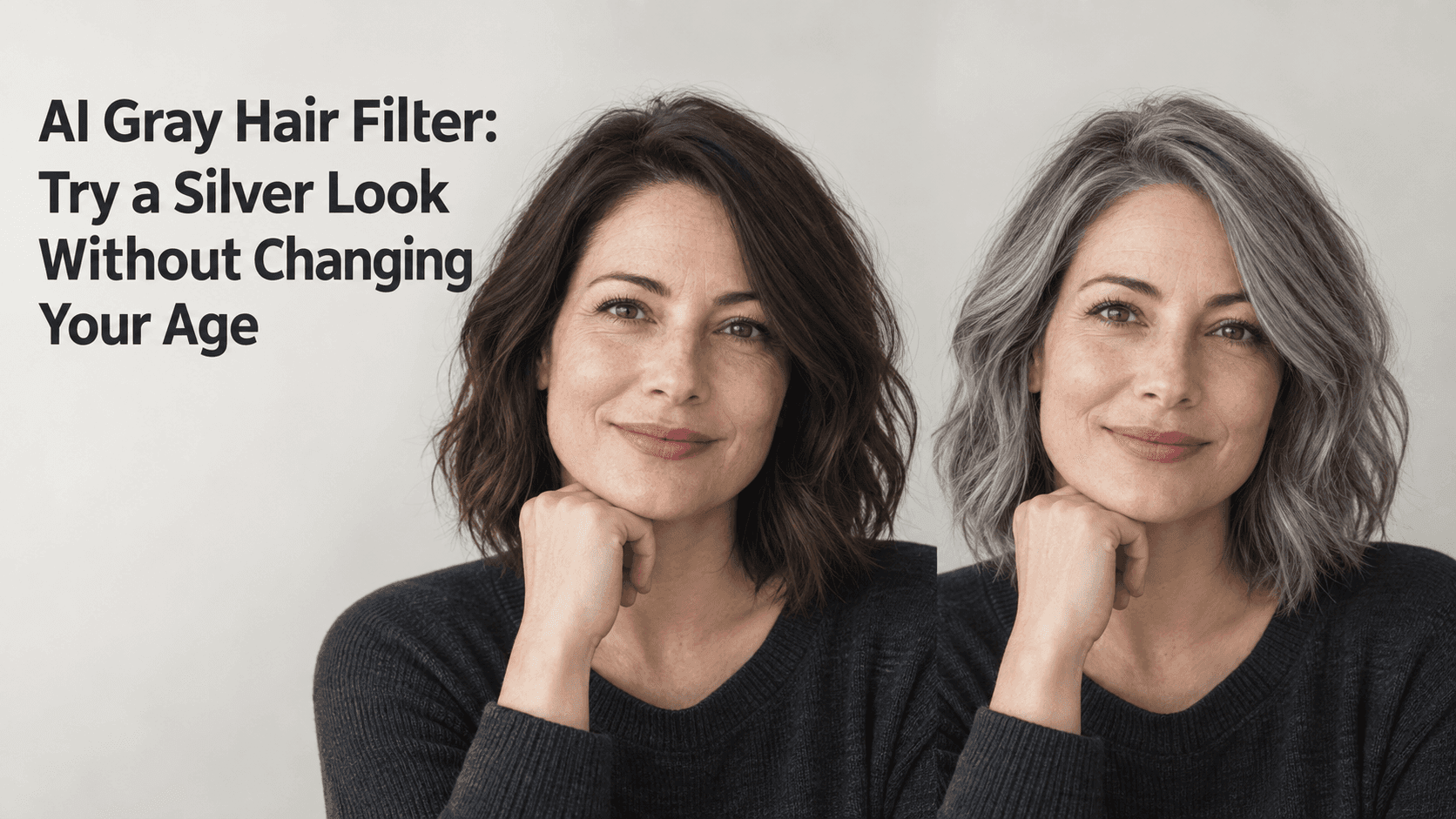
AI Gray Hair Filter: Try a Silver Look Without Changing Your Age
AI Gray Hair Filter: Try a Silver Look Without Changing Your Age
A silver or gray hairstyle can look very different from one person to another. The cut, natural color, lighting, and amount of contrast all matter. A Gray Hair Filter lets you get a rough preview from a photo before making a change, but the useful part is seeing the color on your own face without turning the comparison into a full makeover.
A Gray Hair Filter works best for a simple question: what might this color look like on me? The aim is simple: change the hair color and leave the person alone. Keep the same photo, expression, haircut, and light while you compare a few shades. That way, you can tell whether you like cool silver, soft gray, or a darker salt-and-pepper look.
How to Use a Gray Hair Filter Without Changing Your Age
Begin with a recent photo in which your hair and hairline are visible. Use even light if possible. A bright window behind you, warm indoor bulbs, or strong shadows can make silver look blue, yellow, or much darker than it really is.
A clear front-facing photo is easiest to compare, though a slight angle can help show how the color sits around the temples. Avoid a heavy beauty filter or a photo where most of the hair is hidden. The more of the original hair you can see, the easier it is to judge a Gray Hair Filter result. In a clear photo, a Gray Hair Filter has more visible detail to work from.
Choose a photo that looks like you on an ordinary day. If you usually wear glasses, keep them on. If your hair is tied back in the source image, compare tied-back previews rather than one with a new cut and loose waves. A color preview should answer a color question. That is the most useful way to approach a Gray Hair Filter.
Gray Is Not One Color
“Gray” can mean a lot of things: a few silver strands mixed into a darker base, a soft pewter tone, a smoky charcoal, or a bright cool silver. A very pale silver can look striking in a studio image and washed out in warm daylight. A darker gray may preserve more contrast near the roots and eyebrows.
Instead of asking for “gray hair,” choose a shade with a little more detail. For example: cool silver, natural salt and pepper, soft steel gray, or charcoal gray with a few silver strands. A Gray Hair Filter can help you compare those directions, but your source photo and its lighting affect the result. Use the Gray Hair Filter to compare the shade on your portrait, not as a guarantee of the salon outcome.
Try two or three shades, not ten at once. You will get a clearer comparison from the Gray Hair Filter that way. Save each version with a simple name, such as “soft silver” or “dark gray.” If the tool changes the haircut, skin tone, eyebrows, or apparent age between versions, the comparison is no longer about hair color alone. A Gray Hair Filter comparison only helps when the other details stay consistent.
Keep the Rest of the Photo Steady
When you preview gray hair, keep the same image and change one thing at a time. Hair color is the question; wrinkles, makeup, face shape, and background are not. If those change too, you cannot tell which version of the hair you actually prefer.
In Reveedo’s hairstyle tool, you can try hairstyle previews from an uploaded portrait. For a color-only change, choose the closest available style and compare the result carefully with your original. If you are using an editor that accepts text prompts, be explicit about what should stay the same. This helps keep a Gray Hair Filter edit focused on the hair.
A prompt for a custom image editor could read:
Change only the hair color to a natural cool silver gray. Keep the original haircut, hair length, texture, hairline, face, skin tone, eyebrows, expression, glasses, clothing, and background unchanged. Do not add wrinkles or change the person’s apparent age. Keep the lighting and shadows natural.
The phrase “change only” helps define the request, but it cannot lock every pixel in place. Look closely at the face and hairline after the image is generated. A Gray Hair Filter is a preview tool, not proof of exactly how a dye job or natural graying will look in person. Treat each Gray Hair Filter result as a visual reference.
What to Check in the Preview
Start at the roots. Does the gray meet the scalp naturally, or does it look like a cap placed over the hair? Then check the temples, part line, and hair around the ears. These edges often reveal whether the color follows the original hairstyle. They are worth checking closely after using a Gray Hair Filter.
Look at the eyebrows and lashes too. A silver hairstyle does not automatically mean the eyebrows should turn gray. If they become lighter, darker, or more defined without a reason, the tool may have changed more than the hair. Compare the skin tone and face shape with the source photo, especially around the forehead and cheeks.
Finally, view the preview at both full size and thumbnail size. At full size, you can inspect strands and edges. At a smaller size, you can see the overall impression. A shade that looks convincing close up may feel too stark when you see the whole portrait. This is why a Gray Hair Filter preview should be checked at more than one size.
If the Result Makes You Look Older
Sometimes the hair color changes and the face seems older too. That can happen because a very pale gray reduces contrast around the face, because the light is harsh, or because the editor changed skin details along with the hair. It does not mean gray hair inherently makes someone look older. The Gray Hair Filter may have changed other details, too.
Try a less extreme shade first: a darker silver, a soft gray with darker roots, or a salt-and-pepper blend. Use the same photo and compare the face against the original. If you use a Gray Hair Filter again, keep the request limited to color. If the editor has altered the eyes, skin, or expression, reject that version and try again with a narrower color request.
A useful Gray Hair Filter preview should help you consider the color, not quietly add signs of age. If it keeps changing the face, the source image may be difficult to work with, or that particular Gray Hair Filter result may simply not be dependable enough to guide a decision.
Use the Preview to Have a Better Salon Conversation
A preview can be useful even if it is not exact. Bring the version you like to a stylist and ask what would be needed to get close to it: full coverage, highlights, a blended transition, or darker roots. Ask how the shade may look with your current base color and how much upkeep it would take.
Do not treat a generated image as a promise of a specific salon result. Hair condition, previous dye, natural color, and lighting affect what is possible. The image gives you a starting point for talking through the options. A Gray Hair Filter can help you show the shade you mean more clearly.
If you are only curious, there is no need to choose one “correct” silver. Save the shades you like and compare them on another day, in different light. A Gray Hair Filter is most useful when it helps you notice your own preferences. Let the Gray Hair Filter help you compare, then take time to decide. You may prefer a few silver strands, a darker gray, or your current color after all.
Keep the Person, Change the Hair Color
Save the original photo and each version you want to compare. Use one portrait, keep the styling consistent, and make the color the only planned change. Check the roots, temples, brows, face, and lighting before deciding that a preview looks right. A Gray Hair Filter should leave those identifying details intact.
A good Gray Hair Filter result should still feel like the person in the source photo. That is the standard to use when you judge a Gray Hair Filter preview. It can help you explore silver before booking an appointment, but the final choice belongs to you and, if you are ready to make the change, the stylist who knows your hair.