



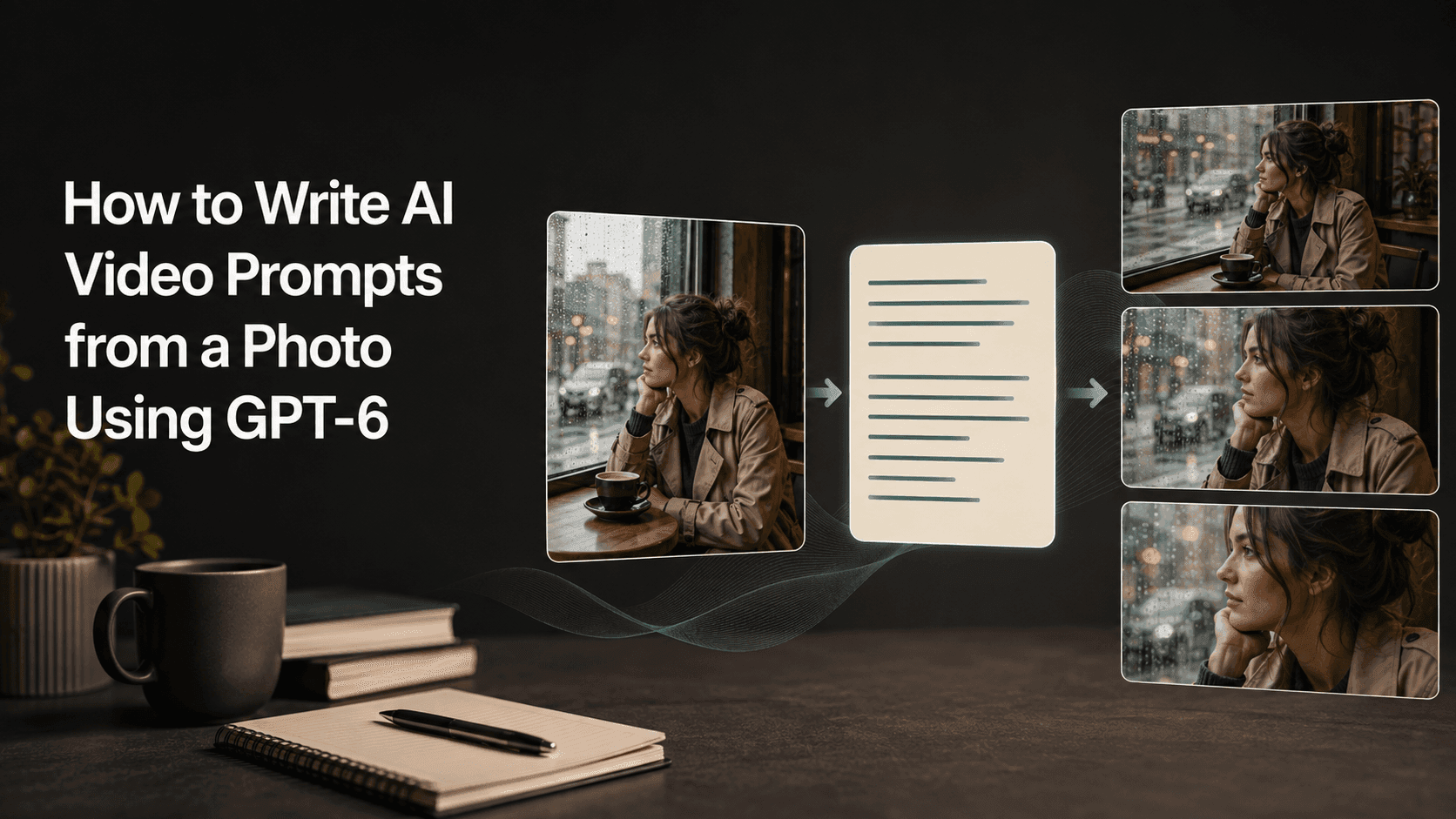
How to Use GPT-6 to Write AI Video Prompts from a Photo
How to Write AI Video Prompts from a Photo Using GPT-6
You’ve picked the photo, uploaded it, and now you’re staring at the prompt box with no idea what to type. Describe the photo again? Add “cinematic”? Or just tell it to make the person move?
Here’s a practical way to use GPT-6 to turn a photo into a video prompt: show it the original image, tell it what kind of video you have in mind, ask it to suggest a motion that fits the photo, and then turn that into a ready-to-use prompt.
There are two steps here. GPT-6 looks at the image and writes the prompt; the actual video generation happens later in Reveedo. According to OpenAI’s official documentation, GPT-6 Astra supports image input and text output, and the model’s native output does not include video.
Below, I’ll walk through the process using a hypothetical café photo. The example prompts are just for illustration. You’ll still need to test them with your actual image and the video model you choose.
Show it the exact photo you’ll use for the video
Imagine a photo like this: a woman sits by the window in a café, hands resting on the table, a cup of coffee beside her, looking out the window. The photo feels quiet and calm. When you turn it into a short video, keeping that mood usually works better than forcing a lot of motion.
In whatever interface you’re using to access GPT-6, upload the original photo directly. If you only say “a person in a café” in text, you lose important details that affect the motion: are the hands visible? How far is the person from the window? How much of the table is in frame?
Later, when you move to the video tool, use that same photo. If you crop or swap the image at any point, go back and check the prompt. If the cup has been cropped out but the text still asks for a close-up on the cup, the two inputs no longer match.
Also think about what the video is for. A quiet slice-of-life clip and a fast-paced ad for the café might use the same source photo but need very different motion.
Ask it to suggest two motion ideas first
“Help me write a cinematic video prompt” is too vague. You might only want a slight camera push, but end up with the person turning, picking up the coffee, the camera orbiting, and the lighting changing.
Give it a more specific task. After uploading the photo, try something like:
Take a look at this photo. I want to turn it into a natural short video. First, briefly tell me what you can see: the person, the pose, and the setting. Then give me two small, subtle motion ideas that fit the image. The motion should stay within the original scene. If anything is unclear, point it out instead of making assumptions. Don’t write the final prompt yet.
Read its description of the photo carefully. If it thinks a closed window is open, or mistakes a sleeve for a hand, correct that right away. Image understanding can be wrong, and the earlier you catch it, the less likely those errors will end up in the final motion description.
For the café photo, two reasonable directions might be: keep the camera fixed and let only the facial expression shift slightly, or keep the person seated and let the camera slowly move closer. Pick the one you want to see first.
Build the motion from the existing pose
The woman is already looking out the window. If she keeps looking and the camera moves a little closer, the result is easy to follow. If she suddenly stands up, grabs her bag, turns, and walks out the door, the video has to explain a lot more.
A good drafting rule is: change as little as possible in the relationships already present in the photo. It doesn’t guarantee success, but it makes the first attempt much easier to evaluate.
Once you’ve chosen the slow push-in, tell GPT-6:
Use the slow push-in option. Keep the person seated with both hands resting on the table. Preserve her appearance, clothing, the coffee cup, and the café layout. Keep the lighting the same as the original. Write a short image-to-video prompt in English. No title or explanation.
For this hypothetical scene, a usable draft would be:
The camera slowly moves closer to the seated woman as she continues looking out of the café window. Her hands rest on the table and her posture stays relaxed. Preserve her facial features, clothing, the cup, and the room layout. Keep the original window light steady throughout the shot.
That means: the camera moves closer, she keeps looking out the window, her hands stay on the table, and the face, clothing, cup, layout, and light all stay as close to the original as possible.
The prompt doesn’t ask her to smile or turn her head. If the original expression already works, keep it and let the camera carry the change.
Before pasting, run the shot through your head
Once you have the prompt, think about whether everything in it can happen at the same time. Is the camera moving closer and pulling back at once? Is the person’s face turned away while the prompt also asks the viewer to see her smile? Why is the hair suddenly blowing in the wind in an indoor photo with closed windows?
If something doesn’t make sense, cut it or rewrite it. If the prompt feels too busy, ask GPT-6 to tighten it:
Condense this into a single camera move. Keep the person in the original pose and the lighting unchanged. Remove any new props, extra actions, and decorative adjectives. Keep only the information needed to maintain scene consistency.
If you know which video model you’ll use, you can mention it. But don’t assume GPT-6 knows every tool’s latest settings. If you have specific instructions for the model, provide them. Things like video duration and aspect ratio should be set in the generation interface according to what’s actually supported. Writing them in the prompt doesn’t always change those parameters.
Test it in Reveedo with the same photo
Open Reveedo, find the image-to-video entry, upload the same original photo, choose the appropriate model and available settings, and paste in the motion prompt you’ve refined.
Only copy the final description. The earlier conversation about why you chose a push-in and which option was better doesn’t belong in the video prompt box.
After it generates, watch the whole video from start to finish. For the café example, pay attention to whether the hands leave the table, whether the cup warps, whether the face still looks like the same person, and whether the window light flickers. A good first frame doesn’t mean the next few seconds will hold up.
When revising, point to the exact problem
“The result isn’t good, please optimize it” doesn’t give a useful direction. Say where the video drifted from what you wanted, and GPT-6 will have something concrete to fix.
For example:
The camera pushed in too far, and the person started picking up the cup. I want the cup to stay on the table the whole time. Change the prompt to a smaller push-in, keep both hands resting near the cup, and leave everything else the same as the original. Return only the revised prompt.
If you have a screenshot of the problem frame, mention what second it appears at. A screenshot can show how a face or object changed, but a single image won’t tell you how fast the camera moved.
For this round, keep using the same photo and the same settings so the comparison is fair. Generation still has random variation, so you can’t attribute every improvement to a single word. If you keep getting stuck on the same motion after several revisions, try a different source photo, simplify the camera move, or switch models. The prompt is only part of what affects the result.
Different photos need different questions
For a product shot, tell GPT-6 which packaging details need to stay readable and how the camera should present them. Start with a small camera move, then later consider object changes like opening a lid or pouring liquid.
For a landscape, ask it to find motion in the water, trees, and clouds already in the frame. After you get the text, check whether it added a landmark that isn’t there or changed the weather you wanted to keep.
For a couple’s photo, be clear about who does what. If necessary, use position in the frame to distinguish them. “The person on the left turns slightly toward the person on the right” is easier to follow than “both turn and smile.”
Every time you switch photos, come back to the same practical question: in the next few seconds, what small change makes sense for this particular image?
Next time, use this as a starting prompt
Please help me write an image-to-video prompt for the attached photo. The video will be used for [purpose], and I want [a character action or camera movement]. Try to keep [important visible details] consistent. First, point out any conflict between my idea and what’s actually in the photo, then give me a short, clear prompt in English. Don’t invent details you can’t see, and don’t promise that everything will be perfectly preserved.
Fill in the brackets with plain language. For example: “a café slice-of-life clip; a slow camera push-in; the person’s face, both hands, and the table setup.” You don’t need to write a professional storyboard before asking for help.
Save the final video, the original photo, and the prompt together. That way, when you come back to revise, you’ll know exactly which text produced that video, and you can keep working on the parts that still need improvement.