



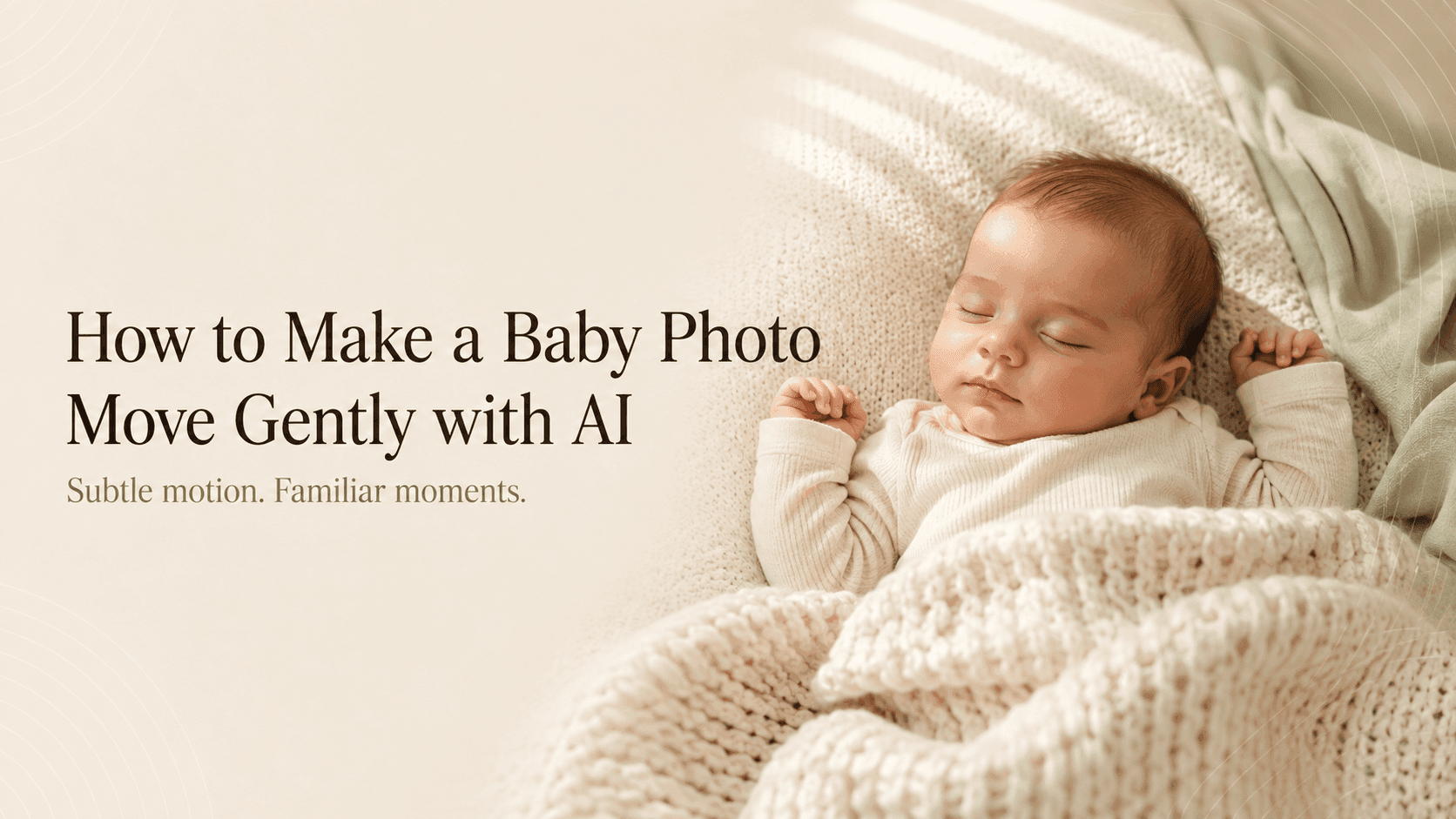
How to Make a Baby Photo Move Gently with AI
How to Make a Baby Photo Move Gently with AI
Some baby photos need very little added to them. A sleepy expression, a hand resting beside a cheek, a tiny face peeking out of a blanket. The moment is already there.
If you want to make a baby photo move gently with AI, choose a small movement that fits the picture. A brief blink can suit an awake portrait. For a sleeping baby, a slow camera move may be enough.
The part worth protecting is whatever made you save the photo in the first place.
Start with a photo where the face is clear
Choose an image where you can see the eyes, nose, and mouth without strong shadows or blur. Soft daylight is a useful starting point, especially when it leaves the baby’s features easy to distinguish.
An awake baby looking roughly toward the camera gives you room to try a small blink. A sleeping portrait suits a quieter approach.
Look at the hands as well. If they are tucked under a blanket, leave them there in the animation. Asking a hidden hand to wave means asking the generator to invent both its appearance and its movement.
There is no need to smooth the skin or brighten every shadow before uploading. Keep a copy of the original and use a crop that leaves some space around the head.
Pick the movement that belongs in the photo
Try describing the intended result in one sentence:
“The baby stays in the same position and blinks once.”
That is a manageable first idea. “The baby wakes up, smiles, reaches out, and turns toward the camera” changes much more about the original moment.
For an awake portrait, you could try a brief blink while the head stays still. For a sleeping baby, start with the subject still and let the camera move gently closer. For a parent holding a baby, keep their positions and contact the same.
You can always test another version later. It helps to see what one small instruction does before adding more.
Three prompts to start with
These examples are intended for testing with a suitable reference photo. Adjust them to match what is visible in yours.
For an awake baby:
Animate the baby in the reference photo with one brief, gentle blink. Keep the head, mouth, and body in their original positions. Preserve the facial proportions, existing expression, clothing, and background. The camera stays fixed, and the lighting remains soft and steady.
Watch the eyes during the blink. If their shape changes or the expression feels unfamiliar, try a version without facial movement.
For a sleeping baby:
Create a quiet video from the reference photo of the sleeping baby. The camera moves slowly closer over a short distance. The baby remains asleep in the original pose, with eyes closed and hands in the same positions. Preserve the blanket, facial features, soft light, and background. Keep the full face inside the frame.
The camera supplies the movement here. There is no need to ask the baby to wake up for the clip to feel personal.
For a parent holding a baby:
Use the reference photo as the opening frame. Add a very gentle forward camera move. The parent and baby hold their original poses, with the baby resting in the same position against the parent. Preserve both faces, the placement of the supporting hands, clothing, and background.
If the picture already has an affectionate expression, keep it. Adding a kiss or a large head turn introduces a different action and may change the parts you liked.
Make a short first version
Upload the photo to your chosen image-to-video tool in Reveedo and select a short duration from the available options. Paste the prompt, then check the settings for any camera or motion effects that could conflict with it.
For example, a prompt asking for a fixed camera does not fit a selected orbit effect. Use one clear direction for the first attempt.
When the clip is ready, watch it at normal speed. Then pause around the middle and near the end. A face can look right in the opening frame and gradually change afterward.
Check the shape of the eyes and mouth, the outline of the cheeks, and the position of any visible fingers. In a held portrait, also look at where the parent’s hands support the baby.
Preservation instructions express what you want; they still need to be checked against the source photo.
Fix the part that looks wrong
If the smile becomes too broad, make the expression instruction more specific:
Keep the original mouth position and expression throughout.
If the head moves too far:
Keep the head still. Limit facial movement to a single brief blink.
If the blanket seems to ripple on its own:
Keep the blanket folds and clothing stationary.
If the face keeps changing, remove facial movement entirely and try a gentle camera move. You may prefer that result anyway.
Change one thing at a time and keep the closest version. That makes the next adjustment easier to judge.
Give the finished clip a quiet ending
During editing, you can let the original photo appear briefly before the movement starts. Ending on the original image also works well, especially in a family montage.
Keep any added caption away from the face. A name or date can go in the space beside the subject, and music can be added afterward if you want it.
Before uploading a child’s photo, check the tool’s privacy and sharing settings. When sharing the finished clip, a simple “AI-animated photo” note helps distinguish the animation from recorded footage.
Play it once more beside the original. If the expression still feels familiar and the movement does not pull your attention away from the baby, you have a version worth keeping.