



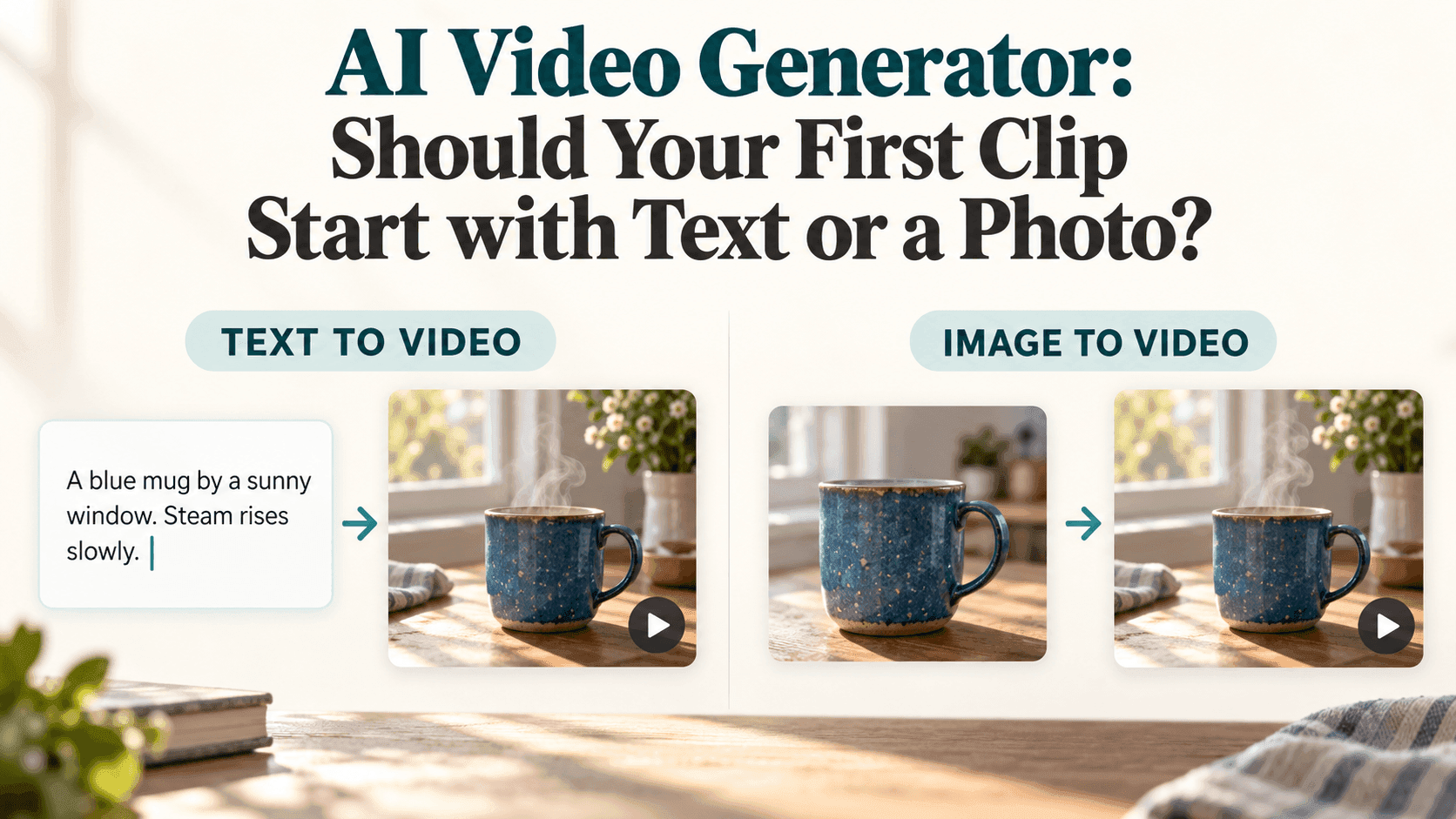
AI Video Generator: Text to Video vs. Image to Video
AI Video Generator: Should Your First Clip Start with Text or a Photo?
Before you open an AI Video Generator, take a look at what you have. A sentence in your notes? A product photo? A picture from a trip that you'd like to see moving?
That usually makes the choice easier. A text-based AI Video Generator gives you room to invent a scene. Image to video gives you a picture to work from. Neither is the right answer for every first project, and you don't need to learn both before making something useful.
What Are You Asking the AI Video Generator to Decide?
Say you want a video of a coffee cup beside a window. If any suitable cup will do, you can describe the scene and let the model fill in the appearance.
But perhaps the cup is something you made. It has a slightly uneven rim, a blue glaze, and a handle you've spent weeks getting right. Describing “a handmade blue mug” won't tell an AI Video Generator exactly what yours looks like.
That's a good reason to start with a photograph. It supplies visual information that words would struggle to pin down. The reference still isn't a guarantee: details can drift as the video develops. You will need to check the result.
The distinction is simple enough to use elsewhere. An imaginary seaside town leaves room for invention. Your actual holiday photo doesn't, at least not if keeping the location recognizable is the point.
When You Have an Idea but No Picture
For a text prompt, think about the shot someone would see. “A relaxing coffee video” gives an AI Video Generator very little to work with. Which cup, where, and what moves?
Here's a sample you can adapt:
A blue ceramic mug sits on a wooden table beside a kitchen window. Soft morning light falls across the table. A thin trail of steam rises from the coffee. Medium close shot, stationary camera.
This describes a picture and a small amount of motion. It doesn't ask the AI Video Generator to show someone grinding beans, pouring coffee, lifting the mug, and drinking, all within one short scene.
These are example prompts, not reports of tested results. Start with the version that matches your idea, then judge what actually appears.
If the AI Video Generator invents a cup you don't like, decide whether the difference matters. You might only need a change of color. If you find yourself specifying the handle, glaze pattern, rim, and proportions in several sentences, a reference image may be a better next step.
When the Photo Already Looks Right
With image to video, much of the visual description is already there. Runway's prompting guide describes this division between the input image and motion instructions, although individual models behave differently.
For the same mug photograph, you could give the AI Video Generator this shorter direction:
A thin trail of steam rises slowly from the coffee. The mug stays on the table, with the handle and rim unchanged. The camera holds the original framing.
Notice that the prompt doesn't redesign the kitchen. There's no request for a marble counter or sunset lighting when the image shows a wooden table in daylight. Giving an AI Video Generator conflicting directions makes the task less clear.
Check the photograph before uploading it. Is the handle visible? Is the rim sharp enough to inspect? Does the crop leave room for the steam?
An AI Video Generator cannot reliably recover an exact detail that the photograph doesn't show. If the camera moves behind the mug, the unseen side has to be generated. A modest first shot lets you check the visible details before asking for more.
How to Judge the First Result
Play the whole clip, not just its opening second. A convincing first frame doesn't tell you whether the handle stays attached or the cup changes shape halfway through.
When comparing AI Video Generator input methods, use roughly the same shot and action. Keep duration and framing comparable where settings allow. Otherwise, you might be comparing different models or shot difficulty rather than the value of a reference.
If a text result has the wrong setting, revise that description. If an image result starts with an awkward crop, revisit the source photo. Ask the AI Video Generator for less movement if the scene becomes unstable.
Save the AI Video Generator prompt with the version you keep. The next AI Video Generator attempt will be easier to assess if you know exactly what you changed.
For a shop listing, inspect markings and proportions against the original before publishing. If the generated mug has a larger handle or a different shape, an attractive clip could still misrepresent the item being sold.
Getting Started on Reveedo
Reveedo has separate Text to Video and Image to Video pages. Available reference options depend on the selected model, so check the current controls before generating.
Choose a short test and review its displayed cost. One AI Video Generator mode isn't automatically cheaper than the other; settings and the number of attempts matter.
For a first project, choose something you can judge easily. Let the AI Video Generator invent a coffee scene if the look is still open. Upload your mug if it needs to look like your mug.