



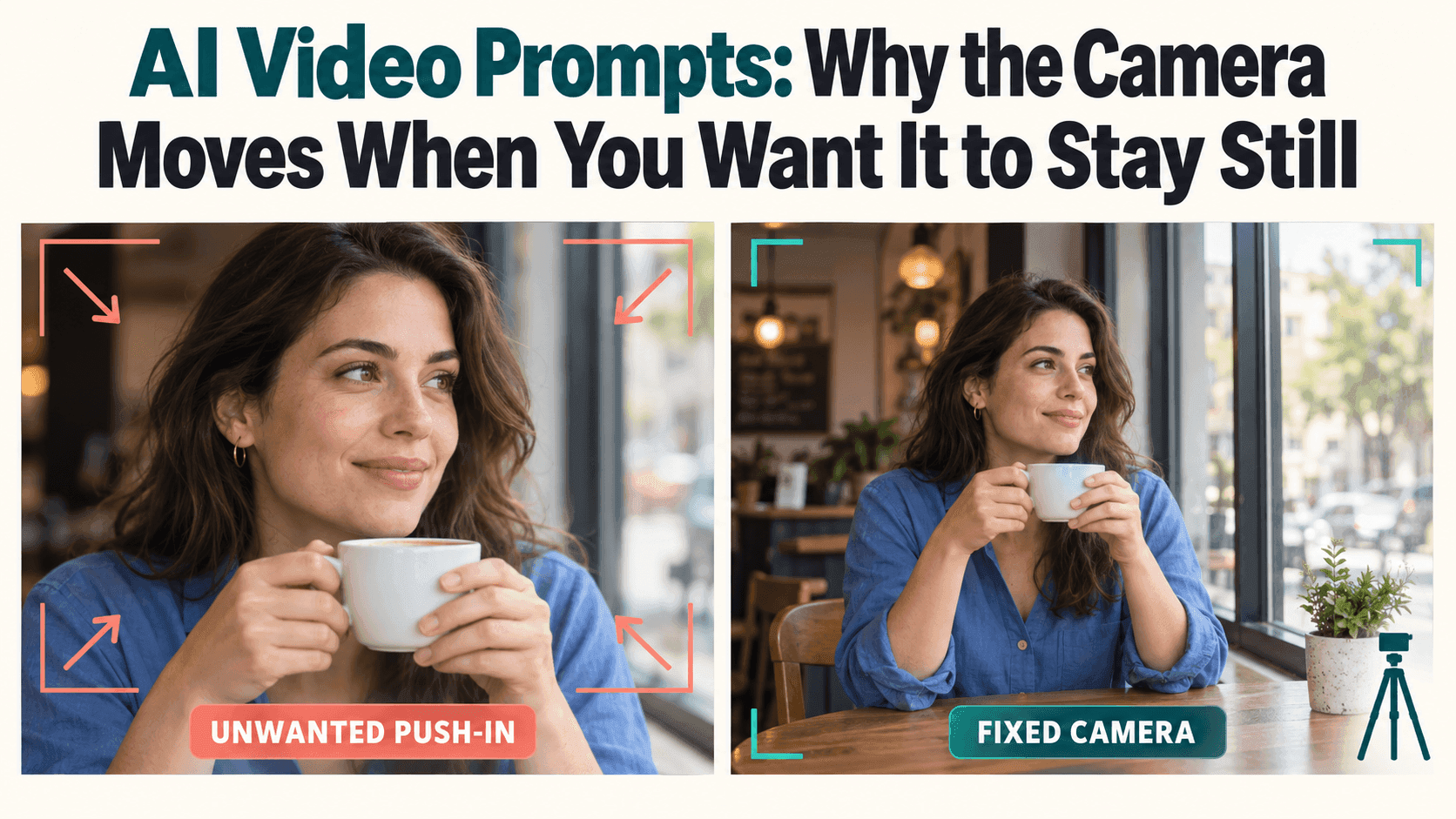
AI Video Prompts: Why Your Camera Won’t Stay Still
AI Video Prompts: Why the Camera Moves When You Want It to Stay Still
You found a photo that works perfectly for your video. The subject is in the right place, the background looks good, and there’s enough empty space for a line of text. All you want is a little movement.
Then you generate the clip. The subject moves, but so does the camera. By the end, the composition you liked has become a close-up you never asked for.
Unwanted camera movement is especially frustrating in AI video because the result can look attractive and still be unusable. A slow push-in might suit a film scene. It is less helpful when it pushes your product into the headline.
Before adding another “DO NOT MOVE THE CAMERA,” it’s worth looking at what the rest of the prompt is asking for.
Your AI Video Prompt Might Be Describing Two Different Shots
Consider this:
A fixed shot of a woman sitting by a café window. She picks up her cup as we slowly discover the warm surroundings, ending on a close-up of her smile.
The instruction starts with a fixed shot and ends with a different composition. Somewhere between those two points, the view has to change.
The problem is easy to miss because the sentence sounds coherent as a story. As a shot description, though, it pulls in different directions.
Try removing the reveal and the close-up:
A woman sits by a café window. She lifts her cup slightly, pauses, and puts it back down. The camera remains in the same position for the entire shot.
You still have the woman, the café, and the small moment you wanted. What you’ve removed is the invitation to reframe it.
Check for similar phrases elsewhere: “follow her movement,” “circle the product,” “approach the window,” or “pull back to show the room.” Some describe the camera directly; others leave its role unclear.
You don’t need to remove every atmospheric word. Warm afternoon light can stay. The question is whether the description asks the viewer to move to a different position.
Give the Action Somewhere to Happen
A fixed camera doesn’t mean a frozen scene. The person can blink, a curtain can move, and steam can rise from a cup while the framing stays unchanged.
It helps to describe those two things separately. For example:
One continuous shot from a fixed tripod. Keep the starting composition, camera position, and focal length unchanged. The seated woman gently lifts her cup a few centimeters, pauses, and returns it to the table. Keep the window corners and table edges in the same screen positions. Preserve the existing background and lighting. No camera movement or cuts.
The window corners and table edges aren’t magic words. They make the intention concrete and give you something to check in the result.
Look at the source image before choosing the action, too. If the cup is already close to the upper edge, lifting it much higher takes it outside the frame. Asking the person to stand up introduces an even larger change. A model may respond by reframing, cropping the action, or inventing details.
For the first attempt, choose a movement that comfortably fits inside the photograph. You can make the scene more ambitious once you know whether the basic shot holds.
Watch the Background for a Moment
A face getting larger doesn’t necessarily mean the camera has moved. The person may simply be leaning forward.
Watch a window corner instead. If it stays in place while the person moves, the viewpoint may already be fixed. If the window, table, and person all enlarge together, the clip may contain a push-in or zoom-like change.
A bending window frame is a different problem. That suggests the background is being deformed, rather than the model producing an ordinary camera move. More instructions about a tripod may not solve it.
Pause near the beginning, middle, and end. Instead of writing down “unstable,” describe what you see: the whole image slides left, the frame gradually tightens, or the table changes shape. That small distinction can save you from repeatedly fixing the wrong thing.
Check the Workflow, Not Just the Words
Reveedo’s image-to-video page lets you upload a source image and describe the subject action and camera behavior. The controls available depend on the selected model and workflow.
If you started from a push-in, orbit, or handheld effect, check that choice before rewriting the prompt again. The effect may be introducing exactly the movement you want to avoid.
Use a neutral workflow where one is available. If the selected mode has a dedicated static-camera control, try it. A text instruction should not be treated as a guaranteed equivalent to such a control.
For a useful comparison, keep the photo and other settings unchanged while you revise the conflicting wording. If you switch the model, crop, duration, and prompt all at once, you might get a better clip without learning why.
A negative prompt field, where supported, can describe unwanted behaviors such as camera shake, panning, or zooming. It should not be expected to settle contradictory instructions in the main prompt.
Sometimes the Wording Is Clear and the Result Still Moves
At that point, stop making the paragraph longer.
Try a simpler action, compare another suitable model, or test a shorter supported duration. None guarantees success, but each gives you a specific change to evaluate. Keep a few results rather than judging the method from one unusually good take.
If the only issue is mild global shake, stabilization in an editor may help, usually with some cropping. It cannot reliably repair a warped background or turn changing perspective into a genuinely locked shot. Check the edges after processing, not just the center.
Finally, place your real headline over the clip and watch it from start to finish. Does the subject stay clear of the text? Is the intended movement readable? Does the composition still work at the end?
Those answers matter more than whether the next generation might look a little more cinematic.