



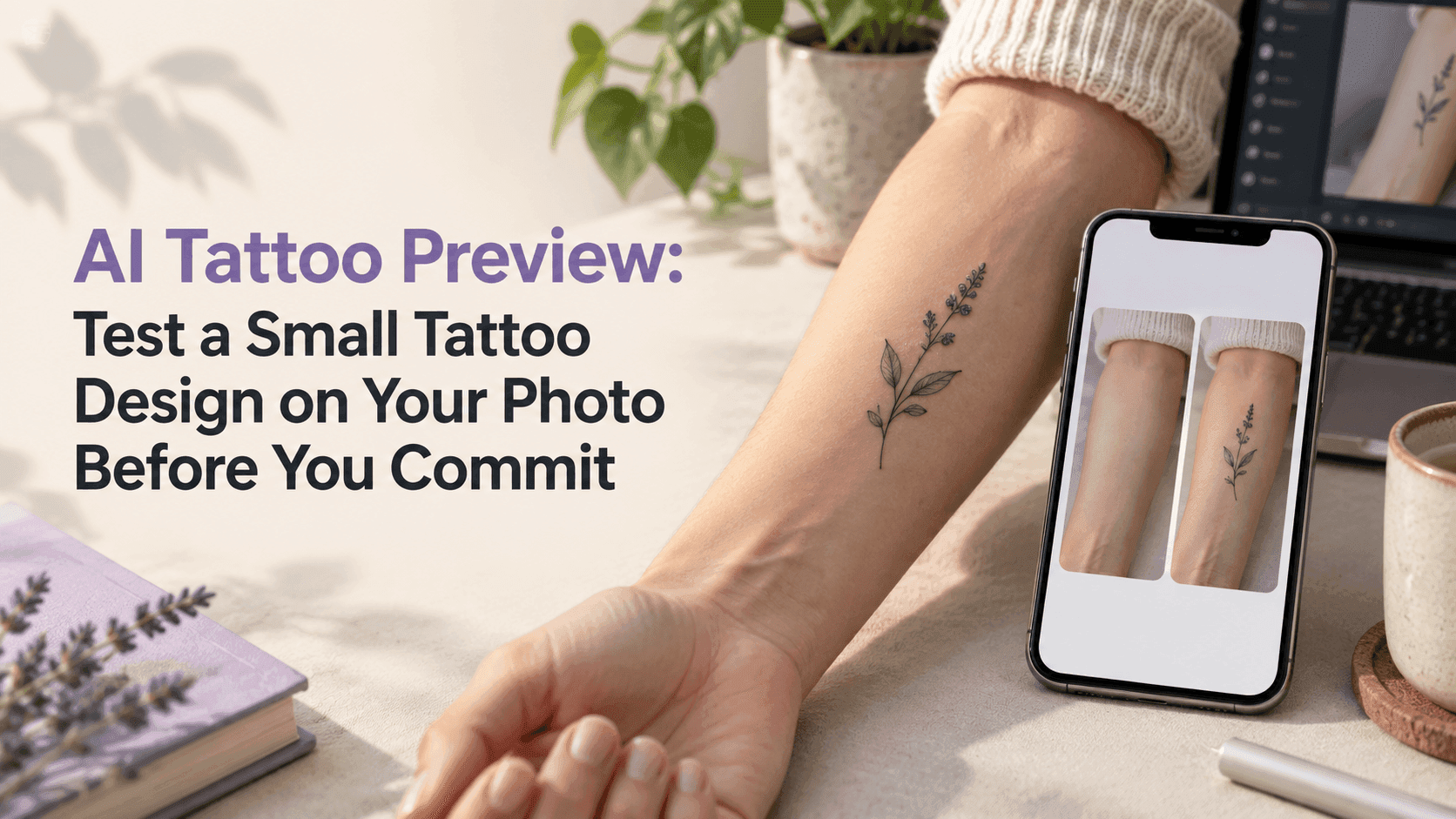
AI Tattoo Preview: Test a Small Tattoo Design on Your Photo Before You Commit
AI Tattoo Preview: Test a Small Tattoo Design on Your Photo Before You Commit
You may have saved a tattoo design for weeks and still not know where it belongs. It looks good on a white background, but would it feel too large on your forearm? Would the lettering sit awkwardly near your wrist? An AI tattoo preview gives you a way to test those questions on a photo before you make an appointment.
Treat it as a mockup, not a prediction of exactly how ink will look. Its value is simpler: you can compare a few options without having to imagine each one from scratch.
AI Tattoo Preview: Pick a Photo That Shows the Placement
Take or choose a photo that clearly shows the area you want to use. Natural light helps, and a relaxed pose is easier to read than an arm twisted toward the camera. Move bracelets, sleeves, or anything else that covers the skin. A straight-on photo is often a good first try because the editor has fewer angles to interpret.
Use a separate, clean image of the design if you already have one. A screenshot with several designs, text messages, or a social-media interface gives the editor extra clutter to interpret. For an AI tattoo preview, one design at a time is usually easier to judge.
Before editing, decide which parts of the design matter most. Maybe it’s a thin outline, a small crescent moon, or the exact lettering. If the design is still in flux, write down the feature you want to keep so the preview doesn’t drift into a completely different idea.
Reveedo’s image editor lets you upload a source photo and describe an edit in a prompt. It can be used to explore how a design might sit in a particular area, but the result depends on the image, instruction, and model. Reveedo AI Image Editor
Give the Prompt a Clear Place and Size
“Put a tattoo on my arm” doesn’t say much. The editor still has to guess which arm, where on it, how big the design should be, and whether it should follow the angle of the skin. A couple of concrete details can make the first result more useful.
For example:
Place the small black botanical design from the reference on the outer forearm, about three inches above the wrist. Keep it narrow and follow the direction of the arm. Preserve the skin, pose, clothing, and background. Don’t add other tattoos.
Change the location and size to suit your own photo. If the design should sit on the inside of the wrist or just below the collarbone, say exactly that. A well-described AI tattoo preview is easier to compare with another version because you know what you asked for.
Avoid changing the design, body area, color, and scale all at once. If the first attempt is close but a little too large, adjust the scale and leave the rest alone. That way, you can tell whether the change helped.
Compare Two Nearby Placements
A tattoo can feel very different a few centimeters higher or lower. Make one version closer to the wrist and another a little farther up the forearm. View them at the size they would appear in a real photo, not only zoomed in on a large screen.
Look at the whole composition. Does the design sit naturally with the arm’s shape? Does a watch, sleeve, or hand crowd it? If it’s lettering, can you still read it at the intended size? A AI tattoo preview that looks balanced when enlarged may feel cramped when you see the whole arm.
Save the strongest version before trying another prompt. It’s easy to lose track of which edit changed the placement and which changed the design. Keeping the original photo and your favorite result makes the comparison more useful.
What the Preview Can’t Tell You
A photo mockup won’t show exactly how a tattoo will look as you move, how the skin’s texture will affect fine lines, or how a particular artist will interpret the design. Camera angle and lighting can also make a design appear larger, darker, or more curved than it would in person.
Small lettering and very fine details deserve a closer conversation with the tattoo artist. Something that looks crisp on a phone may be too small to hold its detail at the size you want. Bring the image along and ask what should change for the design to work on your skin.
Use the AI tattoo preview to arrive at that conversation with a clearer idea, not to replace it. An artist can help assess line weight, placement, scale, and how the tattoo may age.
Before You Book
Try to settle one decision at a time: first the design, then its placement, then its size. Use the same photo for each version so the comparison stays fair. If the mockup looks wrong, check whether the source image is clear before adding more complicated prompt instructions.
The best outcome isn’t necessarily a perfect-looking preview. It’s knowing whether you prefer the outer forearm or the wrist, whether the design needs to be smaller, or whether the lettering should be simplified. An AI tattoo preview can make those questions easier to answer. Take the version you like to a tattoo artist and let them help with the final call.