



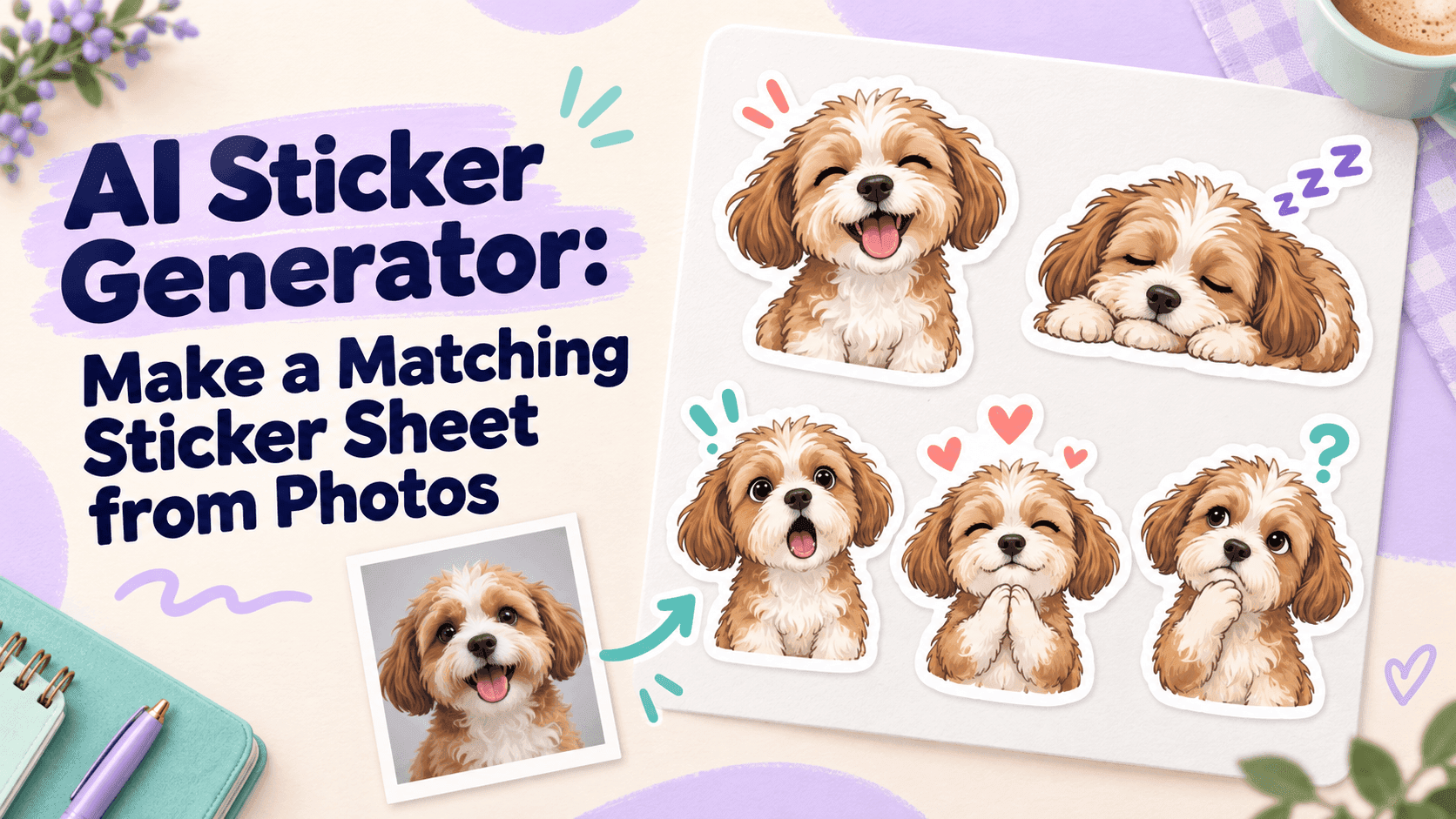
AI Sticker Generator: Make a Matching Sticker Sheet from Photos
AI Sticker Generator: Make a Matching Sticker Sheet from Photos
A photo of someone laughing, squinting at the sun, or holding a sleepy pet can make a better sticker starting point than a carefully staged portrait. Those little expressions already have personality. An AI sticker generator can turn them into a set for messaging apps, but the challenge is keeping the person or pet recognizable from one sticker to the next. A matching set doesn’t have to look identical; it just needs to feel like the same character.
AI Sticker Generator: Begin with One Good Photo
Pick a photo where the face is easy to read. Hair across one eye, a hand covering the mouth, or a strong shadow can make the reference harder to interpret. For pets, a clear view of the eyes and muzzle helps. A relaxed photo is often more useful than one with a dramatic pose, especially if you want several different reactions from it.
Before generating, decide what you’ll actually use. Six stickers with distinct jobs—“thanks,” “oops,” “really?”, “good night,” “on my way,” and a plain smile—are more useful than six versions of the same grin. A short list also gives an AI sticker generator a sensible range to work within.
Write down two or three features that should stay put. That might be round glasses, a short fringe, a white patch on a cat’s nose, or a particular collar. Don’t describe every tiny detail; focus on the things a friend would notice if they changed.
Keep the Same Character, Change the Reaction
The drift often shows up between images. The first sticker resembles the photo; the next has a different hairstyle or a larger head; by the fourth, the illustration style has changed too. Reuse the same character description each time, then change only the expression or pose.
For instance, keep “short dark hair, round glasses, small silver earrings, soft cartoon outline” in every prompt. Then add one instruction: “eyes closed, relieved smile,” or “eyebrows raised, looking confused.” This gives an AI sticker generator a steady base without forcing every sticker into the same expression.
It’s worth choosing the art style before making the full sheet. A flat cartoon style, watercolor texture, and thick comic outline can each work; mixing them usually looks accidental. Generate one test sticker first. If the face and outline feel right, use that image as a visual reference for the rest, when the tool supports reference images.
Small Stickers Need Simple Expressions
A sticker often ends up much smaller than it looked in the editor. At that size, a raised eyebrow or a clear hand gesture may read better than detailed shading around the eyes. One expression per sticker is a useful limit. “Surprised, mouth slightly open, one hand raised” gives the image a clear point. “Surprised, laughing, waving, holding a phone, and jumping” asks it to do too much.
The same goes for props. A mug, a heart, or a tiny speech bubble can help explain a reaction. Add three or four objects, and the face can get lost. When using an AI sticker generator, start with the character and expression; add a prop only if the meaning isn’t clear without it.
Text is better added after the image is made. Short phrases can be useful in a chat pack, but text generated inside an image may be misspelled or inconsistent across stickers. Leave some open space if you plan to add “Thanks!” or “I’m here” later.
A Prompt You Can Adjust
Here’s a basic prompt for a person:
Make a messaging sticker based on the reference photo. Keep the same face shape, short dark hair, round glasses, and silver earrings. Use a friendly, simple cartoon style with a clean white outline and transparent background. Show the person looking puzzled, with one eyebrow raised and a slight head tilt. No words, extra people, or changes to the outfit.
For the next image, keep the description and change the last sentence to a different reaction. That small bit of repetition is useful: it helps the AI sticker generator focus on the change you want instead of reimagining the whole character.
If the result alters a feature that matters, don’t keep adding adjectives. Try a clearer source image or make the pose less ambitious. One edit at a time makes it easier to see what helped.
Check the Sheet at the Size You’ll Send It
Put all the stickers next to one another before exporting. Look for changes in face shape, outline thickness, color, or detail. One sticker may be charming on its own but look out of place beside the others. If that happens, regenerate just that one rather than starting the whole sheet over.
Then shrink the images to the size they’ll appear in a chat. Do the eyes and mouth still read? Is the white outline thick enough against both light and dark backgrounds? Check the transparent edges for stray pixels or bits of background, especially around hair, ears, and fur.
The AI sticker generator gets you through the first draft quickly. The last few minutes—comparing the set, fixing the odd image, and checking the small version—are what make it feel ready to send. Keep the reactions useful and the character familiar. That’s usually enough.
Keyword note: The English body targets roughly 2% exact-match use of “AI sticker generator.” Density varies depending on whether a checker includes headings and metadata.