



AI Product Video Prompt Writing Guide
Generating product videos is not like generating most other AI videos. In a travel video or a virtual character video, a small surprise here and there can feel like a happy accident. But if a bottle, a pair of headphones, or a package your customer will actually receive has even a tiny glitch, it becomes a real problem. The cap can't change shape halfway through. The label can't go blurry, with letters that stop looking like letters. A cream jar can't quietly grow larger when someone picks it up. Before you think about mood, audience, or music, make sure your prompt protects the product in the AI product video.
Start with an image you could put on a product page
The best image for an AI product video doesn't have to be technically perfect. The product needs to be large enough, the important side has to be visible, the lighting must not wash out the label, and there should be a little space around the product so it has room to move.
A front-facing product shot works well for slow, subtle motion. You can add light changes, mist, or simple hand interaction. But it's not right for fast spins, tossing the product, or suddenly revealing the back of the packaging. If the original image doesn't contain useful information, the prompt can't easily make up for it.
First, say clearly what cannot change
At the beginning of the prompt, write down what has to stay the same.
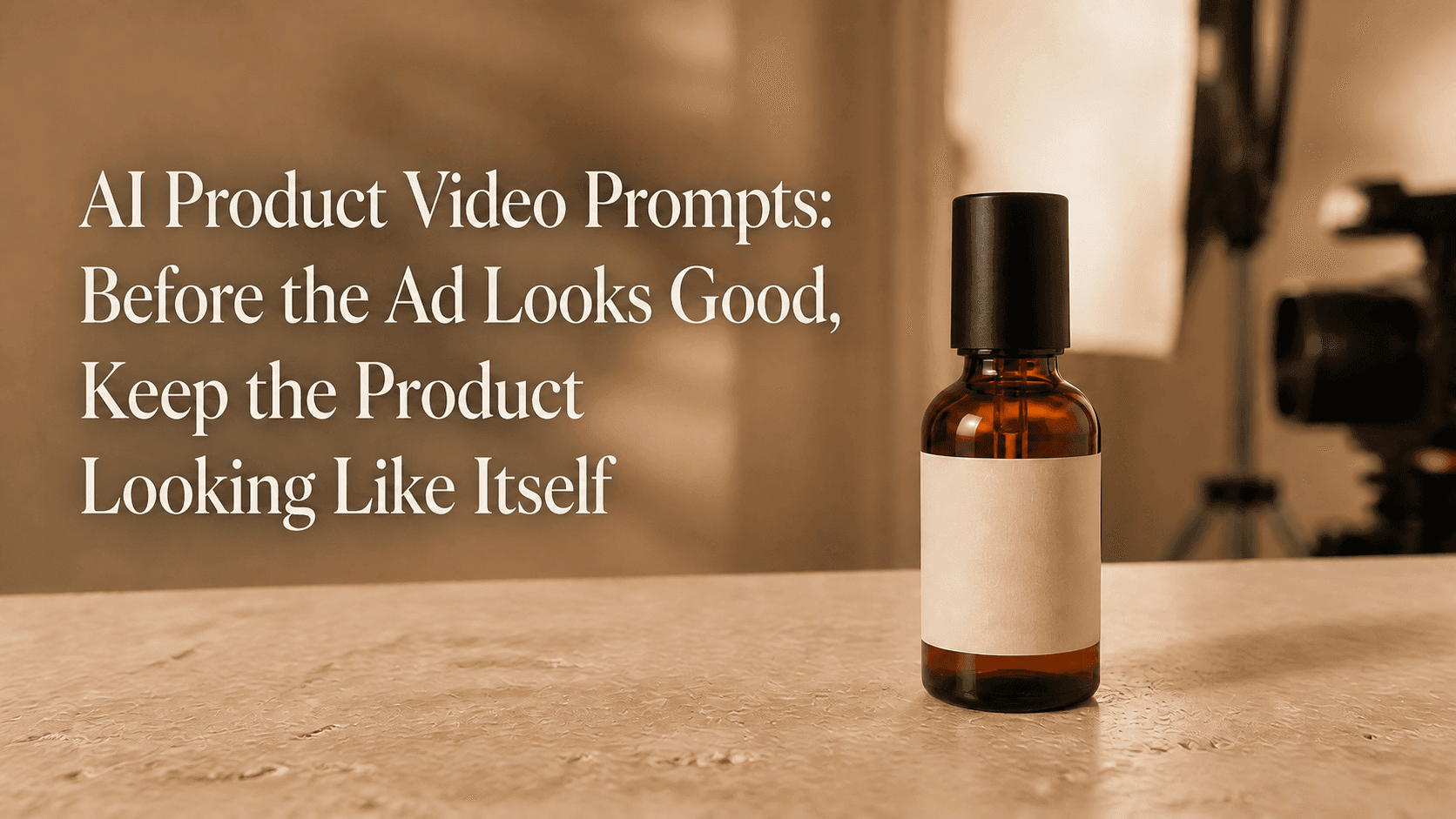
Keep the bottle body, amber glass, black cap, cream label, and white logo exactly as they are in the product image.
Then add just one small movement.
Leave the bottle on a light-colored shelf. Let soft morning light move slowly across the glass. Move the camera in slowly. Keep the label facing the camera.
Put together, it looks like this:
Keep the bottle body, amber glass, black cap, cream label, and logo exactly as they are in the product image. Leave the bottle on a light-colored shelf. Let soft morning light move slowly across the glass. Move the camera in slowly. Keep the label facing the camera. Do not add other products or text.
That's a good product prompt: short, clear, and it doesn't ask the tool to do too much.
If a person is holding the product, keep the action as simple as possible
When generating an AI product video, don't have the person open the product, walk across the room, talk, make facial expressions, and turn the product toward the camera all at the same time. The best approach is to start with one simple action.
Here's an example for a speaker:
Keep the speaker's black body, woven front, size, and logo exactly as they are in the product image. A hand enters from the right, slowly places the speaker in the center of a wooden table, gently rotates it so the logo faces the camera, and then leaves the frame. Keep the camera at table height, and after the hand leaves, move slightly closer to the speaker.
Written this way, the video reads much more clearly. The hand does only one thing: it puts the speaker down. The camera does only one thing: it looks at the speaker. That's already enough.
How to write UGC-style videos
A UGC video should look like a normal person shot it on a phone, but it's still an AI product video underneath. In this case, it's better not to make it feel like a big TV commercial.
9:16 vertical video. In an ordinary room, a person takes a small juicer out of the box, adds berries and ice, presses the switch, and then takes a sip of the finished drink. Keep the juicer's color, cup lid, size, and logo the same as in the product image. Use ordinary kitchen lighting and a steady, phone-shot feel. No subtitles.
When writing the prompt, keep the room simple, the lighting normal, and give the person only one or two things to do. That usually looks better than a busy frame.
How to check an AI product video after generation
First, watch the whole video once, then pause at a few key moments and check these things:
Has the product's color changed?
Is the logo still in the original position?
Does the text on the label look correct?
Have the cap, handle, or lid changed shape?
Can a customer tell at a glance what you're selling?
If something has changed in the AI product video, don't immediately make the prompt longer. First, make the video simpler. Remove hand movements, keep the product in one place, or change a moving camera to a fixed camera.
For example, if the label changes when a hand picks up the bottle, change the prompt to:
Keep the bottle on the shelf the whole time. Do not move it. Only let the light change slowly and let the camera move closer. The label, cap, and glass must look exactly like the product image.
This version may look less exciting, but on an actual product page, it will often work better.
Four AI product video prompts you can copy directly
Skincare bottle
Keep the bottle, label, cap, and logo in the product image exactly the same. Place the bottle on a bathroom shelf with a white towel next to it. Soft morning light moves across the bottle. The camera moves closer slowly. No hands, no other products, and no new text should appear in the video.
Coffee grinder
Keep the coffee grinder's silver body, black knob, and overall size the same as in the product image. A hand turns the black knob one notch and then leaves. The camera stays close to the knob. There are a few coffee beans beside the grinder. Do not change the shape of the coffee grinder. Do not add other machines.
Handbag
Keep the leather color, metal hardware, stitching, and size of the handbag the same as in the product image. A person picks up the bag by the handle and puts it on their shoulder. The camera follows the bag from the side. The bag should stay clearly visible. Do not let clothing cover it.
Wireless speaker
Keep the speaker's black body, woven front, and logo the same as in the product image. Place the speaker on a dining table and turn on a small lamp. Then let the camera slowly pull back to reveal a warm room. The speaker should stay sharp and centered in the frame.
From product image to final cut: follow this order
You don't need to get everything right in one pass. Work from easy to difficult and generating the final cut will feel much lighter.
Step one: choose a product image. Use the clearest, highest-quality version you have. It doesn't have to be the most heavily retouched image. If the label matters, make sure it's clearly readable before you upload the image.
Step two: decide the job of this AI product video. If it will live on a product page, keep the video quieter and closer to the product itself. If it's for social media, generate a video of a person using the product. If it's a new product launch, place the product in a more polished setting. Write it down in one plain sentence. For example: "Show how large the speaker looks on a dining table," or "Show how the juicer is used on a kitchen counter."
Step three: make a simpler version first. Don't add music, voiceover, price text, or big camera moves at the beginning. First check whether the product stays correct in the video. Then add small details later.
Finally, choose a clean clip and start editing. Product names, offers, subtitles, and calls to action can be added after the video is generated. That keeps the product footage separate from marketing text, which makes it much easier to update the copy later.
Common problems for beginners
The AI product video starts to distort halfway through
Make the movement smaller first. Keep the product on the table the whole time. Don't add hand movements and camera movement at the same time.
The product label is hard to read
Switch to a product image with a larger, clearer label. In the prompt, tell the tool to keep the label facing the camera and not to turn the important side away.
The room looks fake
Use fewer decorations. A normal kitchen counter, bathroom shelf, or wooden table usually looks more natural than a room stuffed with expensive objects.
A person holding the product looks unnatural
Change to a simpler action. Placing the product on a table is much easier than unboxing, using, walking away, and then talking to the camera.
Frequently asked questions about generating product videos with AI
Should I use image-to-video or text-to-video for product videos?
If you want the generated video to match the real product, choose image-to-video. A product image gives Reveedo's Image to Video feature a much clearer reference. The result will look more like the actual product.
How long should a product video be?
Start with shorter videos. Five to ten seconds is enough to show one action or one detail. If you need a longer ad, create several short clips and stitch them together in an editing tool.
Can I include the product price or text directly in the prompt?
You can try, but it's better to add those after the video is generated. Product names, prices, and offers change often. Adding them during editing keeps everything clearer and easier to update.
Which AI product video should I make first?
Start with a simple product detail video: the product stays still, the light changes a little, the camera moves closer slowly, and the label stays sharp. That lets you judge whether the product image and product description are reliable before you move on to more complicated scenes.
Generate a clean product video first. Don't put price, subtitles, music, or "buy now" messages into the video yet. You can add those later in an editing tool. That way, if a sentence changes, you don't have to regenerate the whole video.
Start making AI product videos in Reveedo.