



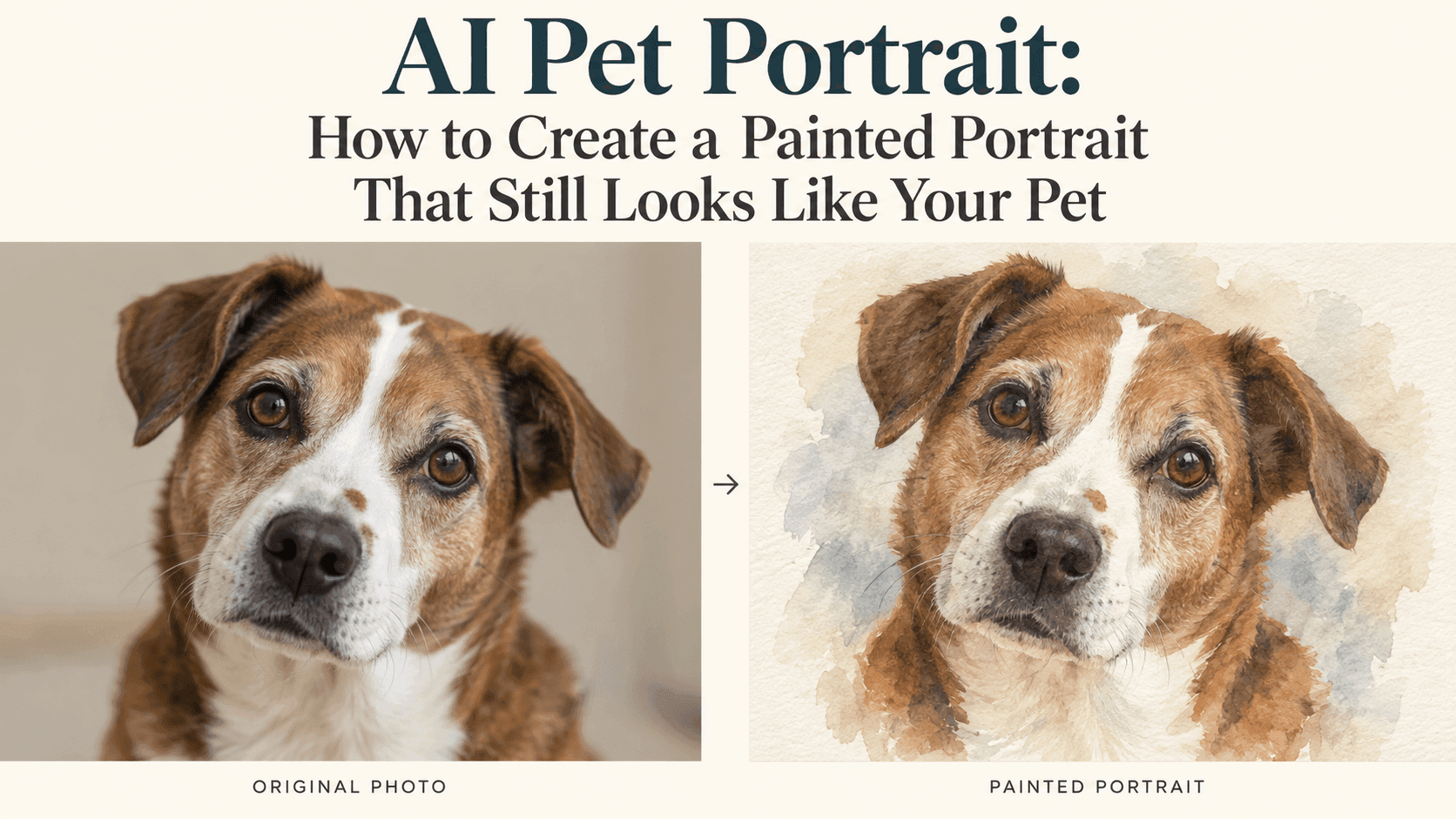
AI Pet Portrait: Make a Painting That Looks Like Your Pet
AI Pet Portrait: How to Create a Painted Portrait That Still Looks Like Your Pet
You probably have a favorite photo of your pet that isn’t technically a great photograph. The background is messy. One corner is too dark. There’s a cushion you would rather leave out.
But the expression is right. It’s the look your dog gives you before a walk, or the way your cat watches from the end of the sofa.
That can be a better starting point for an AI Pet Portrait than a beautifully lit photo where the animal barely looks like itself. You can simplify a background. Getting a familiar expression back after it has been changed is harder.
The aim is to turn that photograph into a painting without losing the reason you chose it.
Choose the Photo for Your AI Pet Portrait Before Choosing the Paint Style
Go through a few photos and compare the face, not the scenery.
Look for one where you can see the eyes, nose, and shape of the ears clearly. A slightly turned head is fine if that is the pose you like. There’s no need to force every portrait into a straight-on view.
Check the coat markings, too. If your pet has a patch beside one eye, make sure it isn’t hidden in shadow. If the tips of the ears matter to the outline, avoid a crop that cuts them off.
Use the original image when you have it. A screenshot taken from a social post may have lost detail before you even start editing.
Sometimes there is only one photograph you want to use, especially for a keepsake. You can still try it. Just keep in mind that a clearer-looking result may contain invented detail where the source was blurred or obscured. Sharper does not always mean more accurate.
The Breed Is Only Part of the Description
“Paint a golden retriever” tells the editor what sort of dog to create. It doesn’t tell it much about your golden retriever.
Your dog might have a narrow muzzle, pale fur around the eyes, or one ear that sits differently from the other. Those details belong in the request.
Before writing the prompt, pick three things you would notice if they changed. For example:
- A small white patch beside the nose.
- One ear folded at the tip.
- Gray fur around the mouth.
For a cat, the list might be the shape of the face, the placement of a dark patch, and the direction of its gaze.
You don’t need a long description of every visible hair. A few accurate observations are more useful than a paragraph calling the animal adorable, beautiful, and full of personality.
Be careful with left and right. “The dark patch on the left side of the image” is clearer than “the left patch” when you are trying to preserve an uneven marking.
Start With a Plain Background and One Painting Style
It’s tempting to add everything at once: watercolor, flowers, a gold frame, a name banner, perhaps a little crown.
Save those decisions for later. First, find out whether the face survives the change in style.
For a watercolor version, you could use:
Turn the uploaded photo into a watercolor pet portrait. Keep the original head shape, muzzle length, eye color, ear positions, and coat markings. Preserve the pose and expression. Use soft painted edges around the body, clearer detail around the eyes and nose, and a plain warm-white background. Keep the small white patch beside the nose in its original position.
Replace that last sentence with a feature that actually belongs to your pet. The prompt is a starting example, not a guaranteed result.
If you prefer an oil-painting look, keep the preservation instructions and change the treatment:
Use an oil-painting style with visible brushwork and restrained colors. Keep the facial proportions and markings from the source photo. Let the background remain simple.
Make both versions from the original photograph. If you turn an already edited watercolor into an oil painting, you may carry its altered ear or missing patch into the next result.
When It Looks Good but Doesn’t Look Right
Put the painting beside the source photo at roughly the same size.
Start with the outline of the head. Is the face wider? Has the muzzle become shorter? Are the ears standing more upright than they were?
Then look at the expression. A dog with a closed mouth can become a smiling, panting dog. A cat’s slightly narrowed eyes can turn into a wide-eyed stare. Both edits may look appealing, but they change the particular moment in your photograph.
Check the markings after that. A shifted patch or a missing strip of gray fur can be enough to make the whole face feel unfamiliar.
Try naming the mismatch rather than requesting “more realism”:
Keep the watercolor treatment, but restore the narrower muzzle shown in the original photo. Preserve the closed mouth and the gray fur around it.
If the next version fixes the muzzle but changes the eyes, don’t keep building on it indefinitely. Return to the original and make the request more focused. Keep any version that is close enough to compare later.
There is no obligation to choose the newest result.
Let the Painting Look Like a Painting
Keeping a likeness doesn’t mean every strand of fur must be sharply outlined.
Some detail can be suggested with a brushstroke. The body can be loosely painted. The background can fade into the paper. What matters is whether the features you recognize are still there.
It helps to step back from the enlarged image. If you plan to display the portrait on a shelf, look at it closer to that size. A tiny brush mark that seems strange at full zoom may disappear in the finished print. A changed eye shape usually won’t.
The reverse can happen as well: an image looks convincing as a small preview, but the nose or whisker area falls apart when viewed larger. Check both before settling on a file.
If you want two pets in one painting, inspect each animal separately. Make sure markings, ear shapes, and colors haven’t been swapped between them. A balanced composition is not much use if one of the pets has become a blend of both.
Make a First Version in Reveedo
Reveedo’s image editor lets you upload an image and describe a style change in words. You can use the prompts above as an editing brief; how closely the source is preserved depends on the image, instructions, and selected model.
Start with one photo and one style. Save the source, prompt, and output together. If you try several versions, label the ones you want to revisit with a short note: “right expression,” “better ears,” or “marking missing.”
Before ordering a print, ask the print service about the required pixel dimensions and crop. Leave enough room around the ears and whiskers for the frame or mount. If you want the pet’s name underneath, adding it separately gives you better control over spelling and placement.
Choose the version you recognize first. The paper texture, background color, and frame can come afterward.
The photograph mattered because of the animal in it. The painting should, too.