



AI Image Extender: Make a Wide Banner from a Portrait
AI Image Extender: Make a Wide Banner from a Portrait You Like
The photo is good. The crop is the problem.
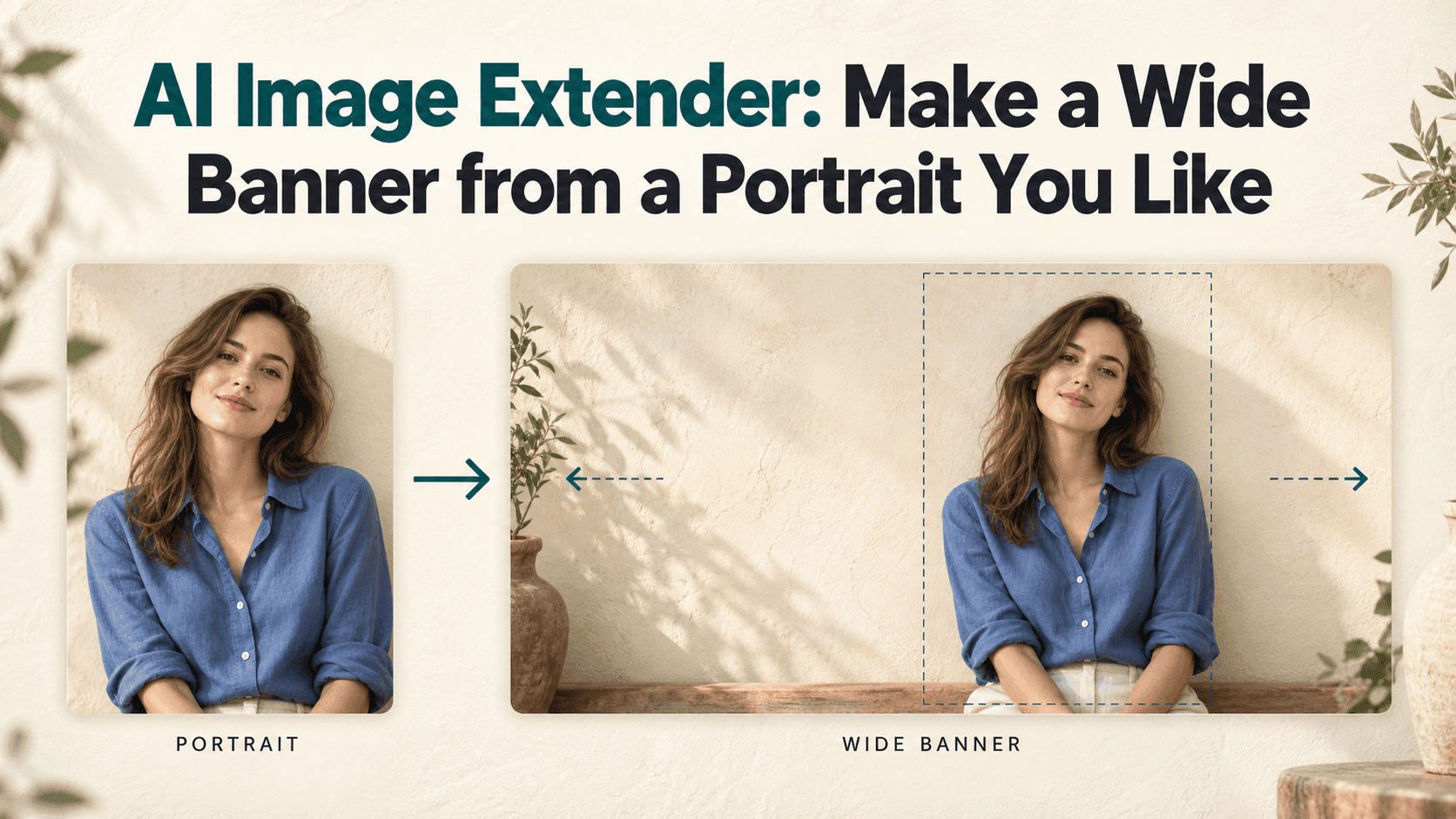
You want it at the top of a website, but it was taken vertically. Crop it into a banner and you lose the shoulders. Stretch it and the face gets wider. An AI Image Extender gives you another option: add background around the person.
Say your photo shows someone in a blue shirt against a cream wall. You need a wide image, with a headline on the left. There is no reason to change the shirt, improve the face, or invent a different room. You just need more wall.
Before Using an AI Image Extender, Decide Where the Words Go
Open the page where the banner will sit. Is the headline on the left? Does the site crop images on mobile? Check those details before spending time on a version that will never fit.
For this AI Image Extender example, place the person on the right and extend the wall to the left. Keep some space above the head and beside the shoulder.
A 16:9 image is a reasonable draft if you do not have the final dimensions yet. It is not a universal banner size. Use your website’s actual proportions when you have them.
Start with the Wall, Not the Whole Room
Look closely at the edges of your source photo. A plain background is a straightforward place to begin an AI Image Extender test. A window cut in half needs more attention: the new section has to continue its frame, perspective, and light.
For the cream wall portrait, try this:
Expand this portrait into a horizontal 16:9 banner. Keep the person on the right. Continue the cream wall toward the left, matching the existing texture and daylight. Leave the left half clear for a headline. Preserve the face, blue shirt, hairstyle, pose, and body proportions. Keep the waist-up framing. Do not add text or decorations.
This AI Image Extender prompt describes the extra space without asking for a new setting. Save the styling ideas for another image.
Check What Your Editing Mode Actually Changes
You can start with a source upload and editing instructions in Reveedo’s AI Image Editor. For an AI Image Extender task, check which controls your chosen mode offers.
If you can extend the canvas while protecting the original area, use that option. If you can only choose a wider ratio, the model may redraw existing details too.
That distinction matters when the portrait belongs to a real person. An AI Image Extender instruction to preserve the face is a request, not a pixel lock.
The Background Looks Fine. Does the Person?
Compare your AI Image Extender result with the original at the same size. Look at the eyes, hairline, collar, and shoulder width.
Then inspect where the old background meets the new one. A faint vertical stripe or a sudden shift in wall texture can give the extension away.
If the AI Image Extender added furniture, try a narrower correction:
Remove the added furniture from the left side. Continue the plain cream wall with matching light and texture.
If the face has changed, return to the source. Repeated edits to an already altered face make comparison harder.
What If the Original Crop Is Already Too Tight?
Before another AI Image Extender attempt, check whether you have an uncropped version of the photo. A wider original can give you a missing shoulder or elbow without asking the model to invent it.
If you only have a close portrait, keep that framing in the final banner. An AI Image Extender can add scenery, but it cannot recover an unseen hand exactly as it was.
Avoid placing that limitation inside a long list of requests. A simple instruction such as “keep the existing chest-up crop” makes your intention easier to follow.
When the New Background Looks Too Perfect
Sometimes the AI Image Extender gets the color right but makes the new wall completely smooth. Beside an original with plaster texture and slight shadows, that smooth patch stands out.
Describe what you can actually see:
Continue the subtle plaster texture and the soft shadow already visible in the source. Avoid a perfectly flat, uniform background.
Check the AI Image Extender result again before adding another instruction. If you change the texture, lighting, and composition together, it becomes harder to tell which change helped.
Keep a Useful Web Copy
Export your AI Image Extender banner at the dimensions the page needs. Save a separate compressed version for upload, then inspect small details and lettering after compression.
A huge file is unnecessary for a small card. A tiny download enlarged across a desktop header can look soft. Choose the output size for the placement. Check the published page once the upload is complete.
Add Your Headline Before Calling It Finished
Bring the AI Image Extender output into a layout editor. Use the actual headline, not placeholder text.
Check your AI Image Extender banner on a phone as well. A desktop layout can hide a cramped mobile crop.
Keep an AI Image Extender copy without lettering. Next month’s headline may be longer.
Leave breathing room between the words and the person’s outline. If the text crosses hair or a shoulder, move it before reaching for heavier shadows and outlines.
Save the original portrait, the clean extended version, and the finished banner separately. You may need all three later.
The result does not need to look more dramatic than the source. It needs to fit the page while keeping the photograph you liked in the first place.