



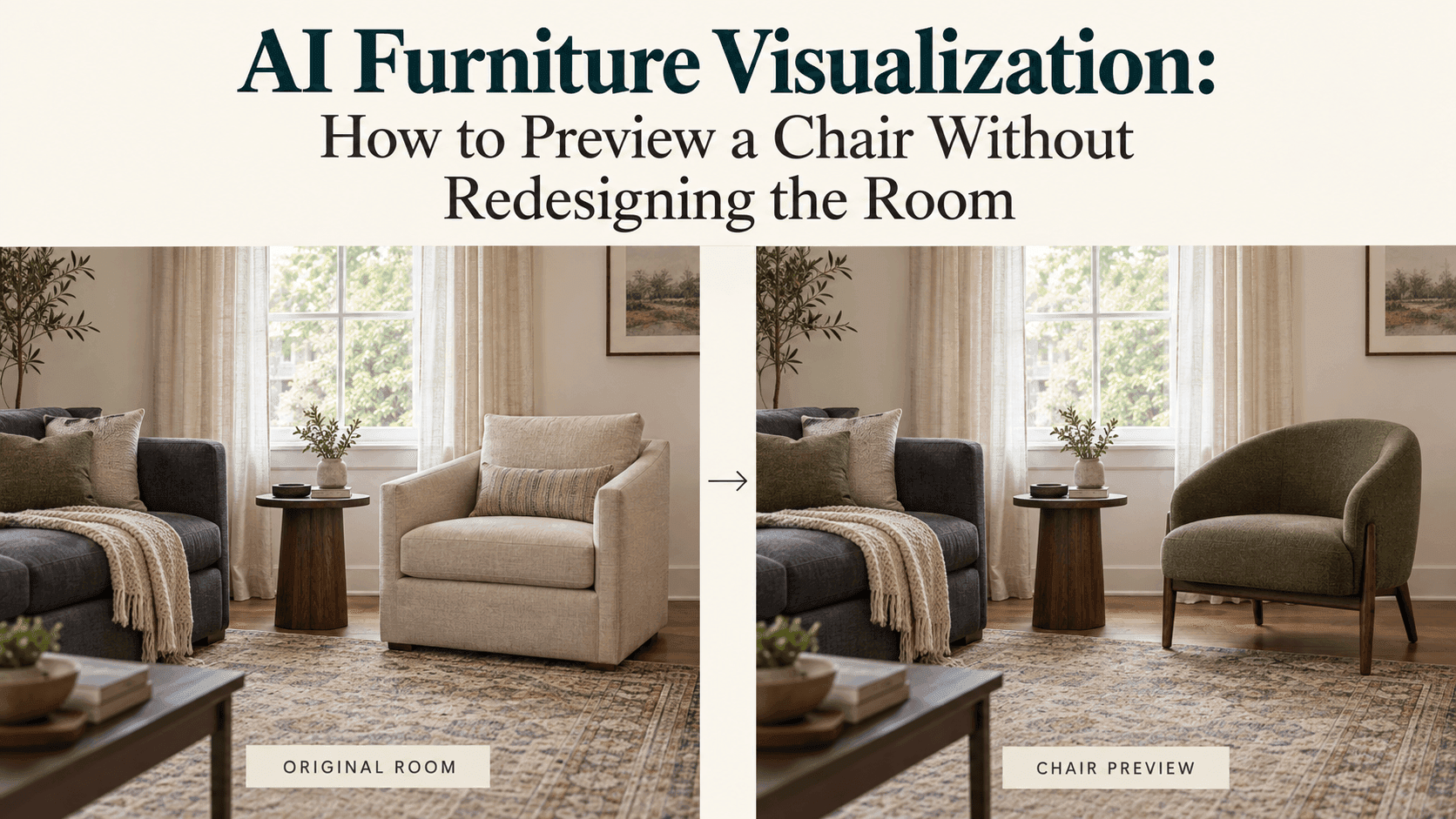
AI Furniture Visualization: Try a Chair in Your Own Room
AI Furniture Visualization: How to Preview a Chair Without Redesigning the Room
You’ve found a chair you like. The fabric looks right, the price is reasonable, and the measurements seem close. But the product photo shows it against an empty beige wall. Your living room has a patterned rug, a dark sofa, and a side table you’re not planning to replace.
That’s where AI Furniture Visualization can be useful. Put the chair into a photograph of your room and see whether you still like it.
Just watch what happens around it. If the edit also replaces your rug and makes the room twice as bright, you haven’t really answered the question.
Give AI Furniture Visualization a Smaller Job
Imagine you want to replace the armchair beside the window. Nothing else needs changing.
Start with a photo that shows the existing chair, the floor beneath it, and enough of the sofa to understand how the pieces sit together. A picture of the whole room taken from the doorway may make the chair too small to judge. A tight crop of the chair alone leaves out the surroundings that matter.
Somewhere between the two works better for this comparison.
Use a normal camera view if possible. An exaggerated wide-angle photo can make the corner look more spacious than it feels in person. You’re trying to picture a purchase in your actual room, not photograph the room for a property listing.
Move the laundry basket or shopping bags if they cover the spot. Leave the furniture you intend to keep.
Say Which Chair Goes—and What Stays
“Add an olive armchair to my living room” could give you a second chair. “Redesign this corner with an olive armchair” gives the editor permission to do considerably more.
Name the object you want replaced:
Replace the existing armchair beside the window with a compact olive-green fabric chair with dark wooden legs. Keep the sofa, rug, side table, curtains, wall color, and camera position unchanged. Match the light already in the photograph.
This is an example brief, not a tested promise. Its purpose is to keep the request narrow.
You don’t need to describe every object in the room. Mention the pieces whose appearance or position affects your decision. If the chair has to work beside a dark sofa and a patterned rug, those are worth naming.
Leave out phrases such as “make it luxurious” for now. You might get a beautiful room, but beauty isn’t the test. The test is whether that chair works with the things you already own.
A Description Gives You a Type of Chair, Not Necessarily the One in Your Basket
“Olive fabric chair with wooden legs” could describe hundreds of products. The generated chair may have wider arms, a lower back, or a different seat cushion from the one you’re considering.
That’s fine for exploring a direction. It’s less useful when you’re choosing between two actual products.
If the selected model accepts more than one reference image, use your room photograph alongside a clear photo of the chair. Explain the job of each image:
Use the room in the first image as the setting. Replace only the armchair beside the window with the chair shown in the second image. Follow the reference chair’s back, arms, upholstery, and leg design. Keep the rest of the room as it is.
A product view close to the angle you want in the room gives you more visible details to compare. If the only reference shows the chair straight from the front, the generated side view may include guessed details.
Afterward, open the product image again. Check the arms, the curve of the back, the leg shape, and the visible seams. Don’t assume the editor preserved them simply because the color is correct.
Where reference images aren’t supported, treat the result as a rough style preview.
Look at the Rug Before You Look at the Chair
The new chair will naturally attract your attention. For a moment, ignore it.
Look at the edge of the rug. Look at the gap between the side table and the wall. Compare the window and the nearest sofa arm with the original photograph.
If those things moved, the edit may have made room for the chair rather than placed it in the room you supplied.
That matters. A bulky chair can look surprisingly manageable when the table quietly shifts a little and the corner becomes wider.
Next, check the floor contact. The legs should appear to meet the same floor plane as the nearby furniture. The shadow should make sense beside the existing shadows. You don’t need a lesson in rendering to notice a chair that seems to hover.
If the surroundings have changed too much, go back to the original photo and try a more limited edit. Continuing from the altered room only carries the mistake forward.
Compare Two Chairs Without Giving One a Better Room
Make each version from the same original photograph.
Keep the crop and lighting as similar as you can. Don’t compare one chair in a bright, uncluttered room with another in a darker scene that has gained extra cushions and accessories.
Then ask specific questions. Does the rounded back compete with the shapes already in the room? Do dark legs repeat the finish of the side table, or make that corner feel visually heavy? Is the upholstery a contrast you actually like?
There isn’t one correct answer. The point is to make your own preference easier to see.
You can do this kind of focused replacement in Reveedo’s image editor, which accepts source images and written editing requests. The available controls and how closely details are preserved depend on the model and input.
Save the useful versions with the product names. “Chair A” is easy to remember while both browser tabs are open, less so a week later.
Before Ordering, Put the Phone Down and Measure
This is the part the picture can’t do for you.
Check the chair’s overall width and depth on the manufacturer’s page. Mark that footprint on the floor with something removable and suitable for the surface. Walk around it. Open the nearby door. Imagine sitting down rather than just looking at the chair from across the room.
If it reclines or swivels, check the space needed for that movement as well.
A generated image can make a chair look proportionate without placing it at a reliable scale. Typing measurements into the prompt does not establish a calibrated room model.
The same caution applies to upholstery. A preview can help you compare light against dark or warm against cool. It can’t settle the exact shade or feel of the fabric. If those details matter, ask for a swatch.
Keep the result for what it does well: helping you notice that you prefer slimmer arms, a lower back, or a quieter color next to the rug. Once the choice is down to one or two chairs, real measurements and product details should take over.