Original image
Frames To Video
Have a few key images that you want to bring to life, but no idea how to animate them? With REVEEDO's Frames to Video feature, just upload your image frames and the system will automatically generate a complete video for you. You can freely adjust resolution and model type. No need to manually align frame rates or worry about choppy transitions - frame sorting, in-betweening, and playback speed are all handled automatically. Just sit back and watch the result.
Start and End Frame
Using Frames to Video, all you need to do is upload two images: one as the starting frame and one as the ending frame. Whether these are hand-drawn animation cels, video screenshots, AI-generated images, or even casual phone photos, the system automatically handles three tasks:
Your images will move effortlessly, without looking like a stiff slideshow. And you don't need to understand any animation principles.
Frame order sorting - automatically identifies which image is the start and which is the end.
Smart speed matching - adjusts playback pace based on content, never too fast or too slow.
Smooth in-between generation - intelligently creates transition frames so the change between your two images looks natural and fluid.
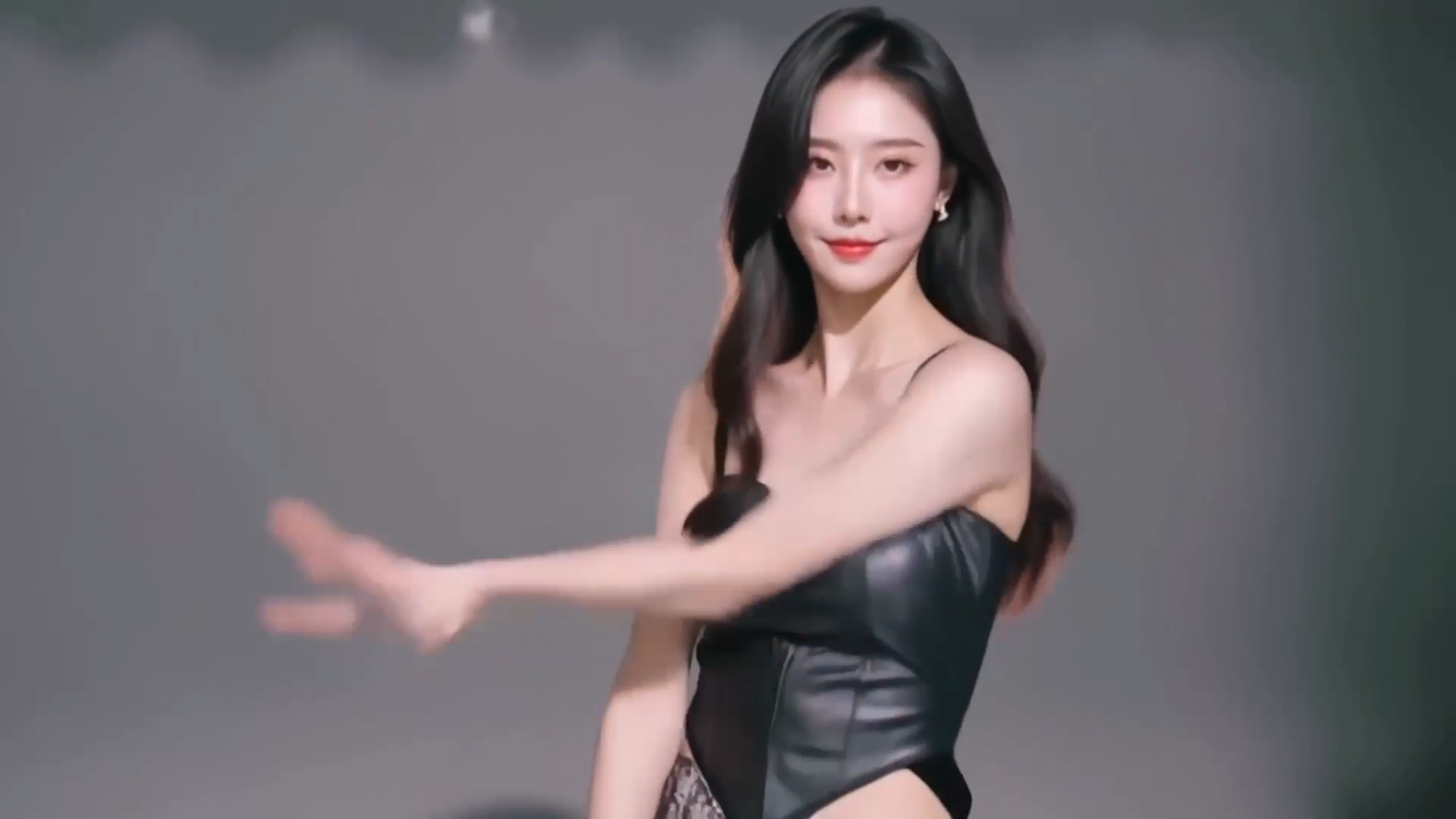
The portrait comes alive with a subtle head turn, soft blink, and natural fabric movement under cinematic studio lighting.
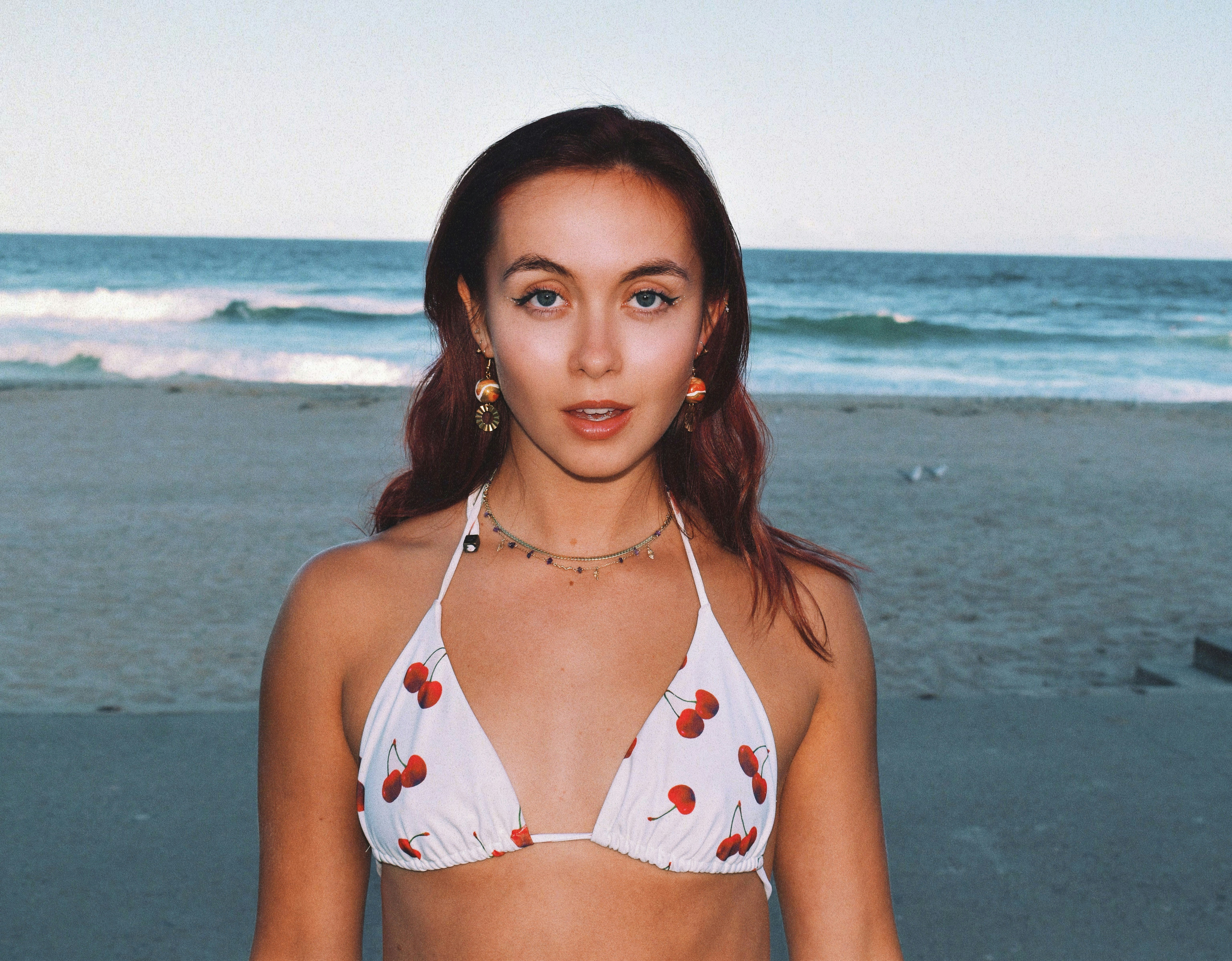
Animate the fashion still into a premium editorial shot with gentle camera drift and confident glasses-adjusting motion.
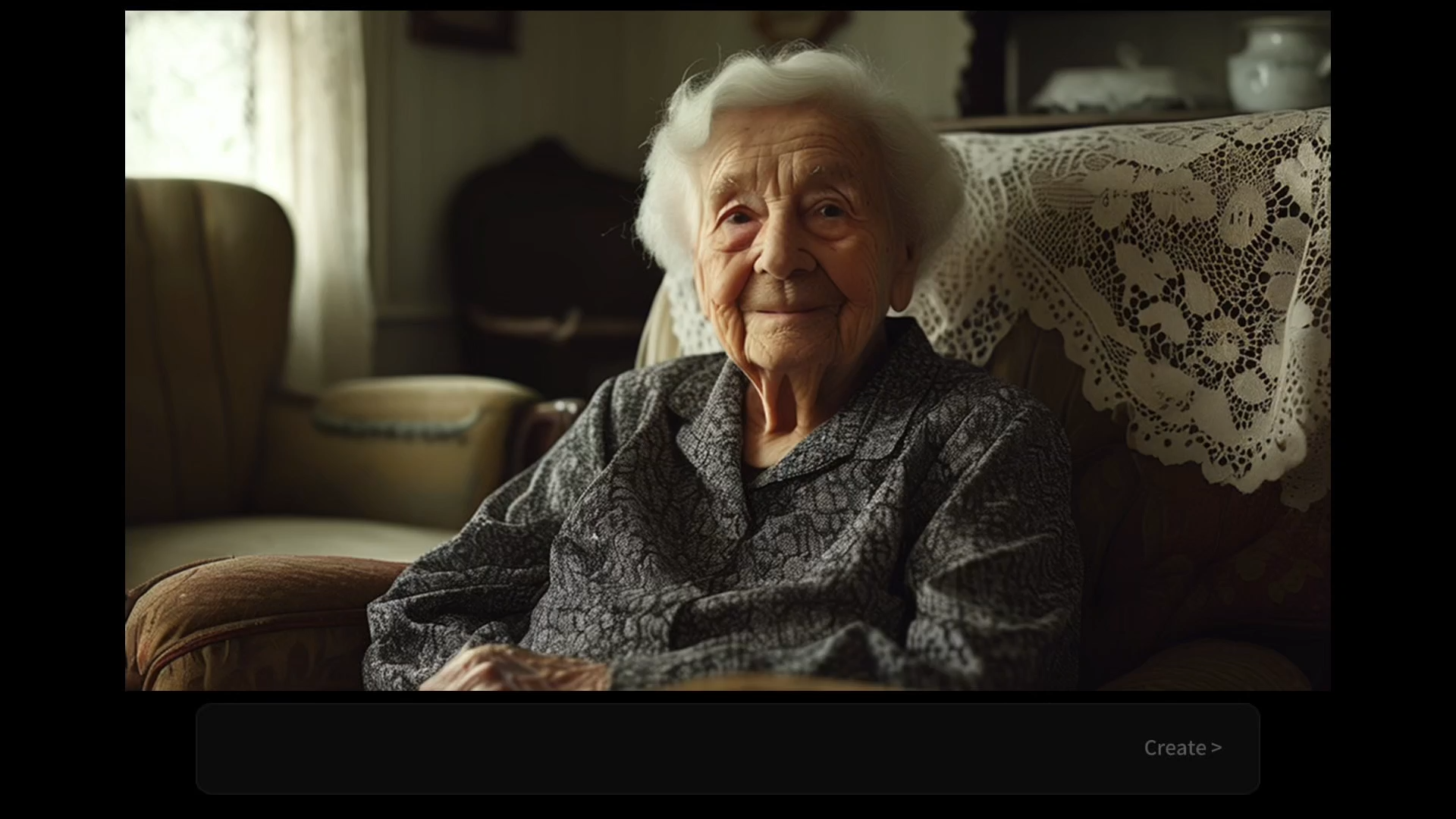
Turn the source into a luxury beauty clip with a slow push-in, hair movement, and polished cinematic pacing.
Use Cases
Upload hand-drawn cels or individual frames - for example, a character's jump start and landing pose. The system automatically fills in the arc of the motion, saving you from tedious frame-by-frame work. Ideal for indie animators, illustrators, and design students.
Created a stunning image with Midjourney, DALL-E, or another tool? Don't let it just sit in a folder. Upload it to Frames to Video along with another AI-generated end frame (say, a different angle of the same scene) and turn it into a dynamic video - giving static AI art a second life. You can even batch-generate short videos with consistent styles for social media grids.
Extract key frames from an existing video, pick your favorite start and end frames, and upload them. For instance, take two frames from an old movie clip, add a prompt like "convert to cyberpunk style", and the system will regenerate an entirely new video based on your idea. Great for remixes, style transfers, or giving old footage a fresh look.
Export videos directly for TikTok, Instagram Reels, or YouTube Shorts. You can freely choose aspect ratio (9:16 vertical or 16:9 landscape) and duration (2 sec, 5 sec, 15 sec, etc.). The pacing is smooth, and no extra editing is needed before posting. Many creators use it to quickly produce "before vs after" transitions or looping micro-videos.
How to Use Frames to Video
Powerful features don't have to be complicated. From zero to your first video in under two minutes. Just follow these steps:
Upload at least two images: one as the start frame and one as the end frame. The system automatically recognizes the order. If you have additional in-between frames, you can upload those too - the system will intelligently blend them.
Describe how you want the transition to look. For example: "Transition from a sunny beach in daytime to a starry night sky, waves gradually calming down, sky shifting from blue to deep purple." The more specific you are - lighting changes, object movement directions, color shifts - the closer the result matches your vision.
Model: realistic, illustration, anime, 3D render - pick the one that best matches your image style. Resolution: 720p, 1080p, or 4K. High-res exports are great for big screens; lower resolutions render faster. Duration: adjustable from as short as 2 seconds up to 30 seconds. For most content, 3-10 seconds gives the most natural transition.
One click starts the whole process - frame sorting, in-betweening, and rendering. Typically finishes in 30 seconds to a couple of minutes, much faster than manual frame-by-frame tools.
Once generation is complete, download the video file. You can then use it anytime, share it, upload to social media, or re-import for further edits. No watermark (paid plans), and the video is fully yours.
FAQ
Almost all common formats - JPG, PNG, WebP, BMP, and even some HEIC files. No need to convert beforehand. Individual images should be under 20MB and at least 512x512 pixels for the best in-between results.
Start Creating
Upload your frames, describe the transition, and let REVEEDO turn static images into a smooth video you can download and share.
Try Frames to Video Now